
Global network of DNS servers
Use the DNS server closest to your physical location for best performance. If there is room for a 2nd DNS server, use the next closest location. If there is room for a 3rd DNS server, use the next closest location.
| Location | DNS Server |
|---|---|
| Australia — Melbourne | 118.127.62.178 |
| Australia — Perth | 45.248.78.99 |
| Australia — Sydney 1 | 54.252.183.4 |
| Australia — Sydney 2 | 54.252.183.5 |
| Brazil — São Paulo | 54.94.175.250 |
| Canada — Toronto | 169.53.182.124 |
| Denmark — Copenhagen | 82.103.129.240 |
| Germany — Frankfurt | 54.93.169.181 |
| Great Britain — London | 212.71.249.225 |
| Hong Kong | 119.9.73.44 |
| India — Mumbai | 103.13.112.251 |
| Ireland — Dublin | 54.72.70.84 |
| Italy — Milan | 95.141.39.238 |
| Japan — Tokyo | 172.104.90.123 |
| Netherlands — Amsterdam | 46.166.189.67 |
| New Zealand — Auckland 1 | 120.138.27.84 |
| New Zealand — Auckland 2 | 120.138.22.174 |
| Singapore | 54.251.190.247 |
| South Africa — Johannesburg | 102.130.116.140 |
| Spain — Madrid | 185.93.3.168 |
| Sweden — Stockholm | 46.246.29.68 |
| Turkey — Istanbul | 212.68.53.190 |
| United States — Dallas (Central) | 169.55.51.86 |
| United States — Oregon (West) | 54.187.61.200 |
| United States — Virginia (East) | 54.164.176.2 |
Configure DNS
Afer you have signed up for Getflix, you must update your DNS settings. You have two options:
- Update the DNS settings for your entire network by changing the DNS settings on your router/modem. This option ensures that any device connected to your network will be able to access unblocked services.
- Update the DNS settings on any individual device you wish to use to unblock services. This option means that unblocked services can only be accessed using these devices.
Option 1 should be used if you know how to configure DNS settings on your router. Setup guides for various routers can be found here. The remainder of this section describes how to change DNS settings on individual devices.
Select the device from the menu on this page for instructions on how to configure DNS settings as well as setup Netflix and Hulu Plus.
Configure DNS-over-VPN
Getflix DNS-over-VPN provides an alternative way of connecting to our DNS servers using a VPN. This allows you to use our DNS servers in situations where it wouldn’t normally be possible such as hotel rooms, public WiFi, 3G/4G connections and ISPs that block/hijack 3rd party DNS servers.
For more information about Getflix DNS-over-VPN and how to set it up, check out this article on our support site.
Configure DNS
The DNS settings listed on the Overview page can be input directly into your router, for your entire network. You won’t need to change the DNS settings on your PC if you have already done so on your router.
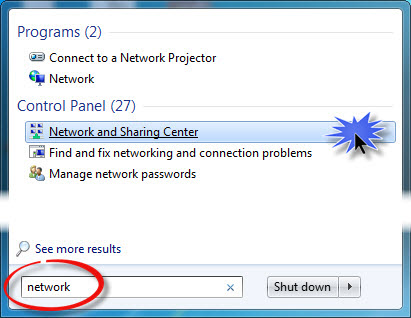
1. Open the Network and Sharing Center
Open the Start Menu and type “network” in the search box. Find and click the “Network and Sharing Center” link under the “Control Panel” heading.
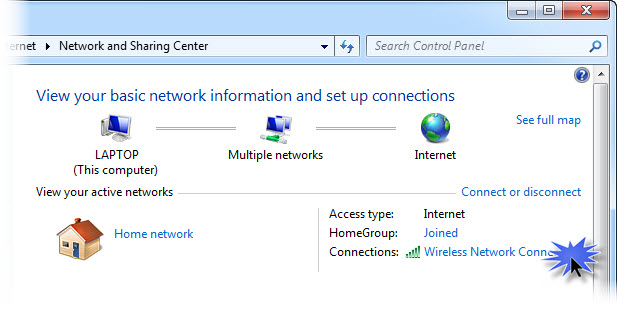
2. Open the Internet Connection Settings
Locate your “Internet” connection and click the link that says “Wireless Network Connection” or “Wired Network Connection”.
3. Open the Connection Properties
Click the “Properties” button.
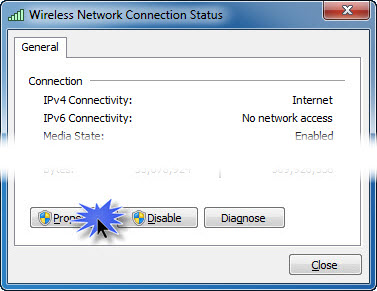
3. Open the Connection Properties
Click the “Properties” button.

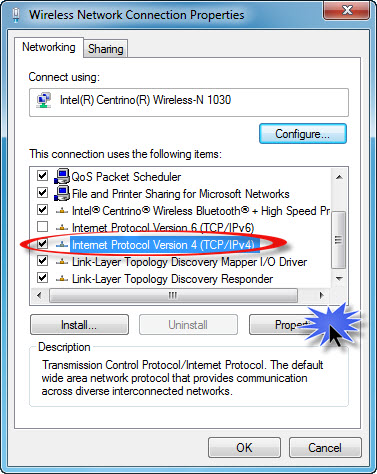
4. Open the TCP/IPv4 Properties
Locate the item in the list that reads “Internet Protocol Version 6 (TCP/IPv6)” and ensure that it is disabled (not checked).
Locate and select the item in the list that reads “Internet Protocol Version 4 (TCP/IPv4)”, then click the “Properties” button.
5. Update the DNS Servers
Click the radio button that says “Use the following DNS server addresses”, then enter the 2 DNS addresses as shown on the Overview page. Once complete, click the “OK” button.
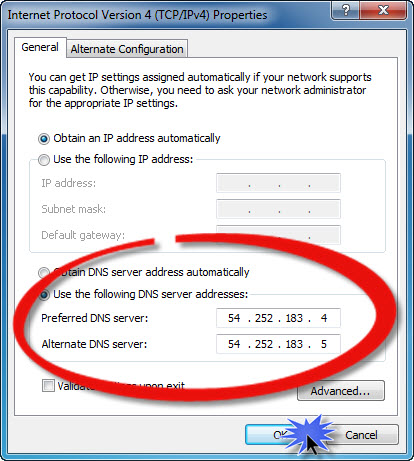
Thats it! You should now be able to access (and sign up for) Netflix and Hulu Plus.
Download the Getflix app for Mac! This app allows you to quickly add/remove our DNS servers on your Mac, keep your IP up-to-date and change regions.
If you download and install the Getflix app for Mac, there is no need to complete the steps below.
Configure DNS
1. Open the Network Settings
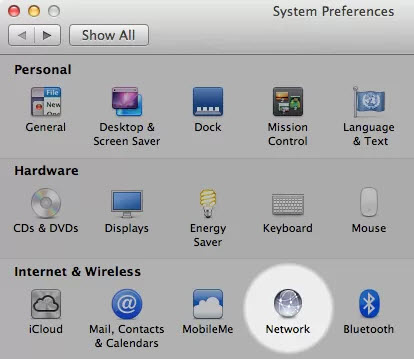
From the Apple menu, select “System Preferences”, the window shown below should appear. Then click on the “Network” icon.
2. Select the Network Connection
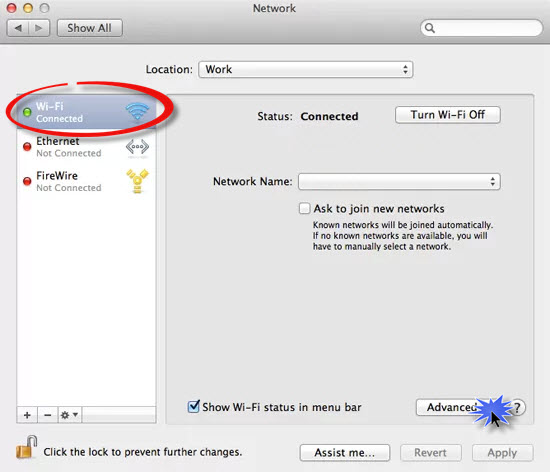
Select your Network Connection. Choose “Wi-Fi” if you use wireless or “Ethernet” if you use a cable. Your current connection will have a green dot shown next to it. Click the “Advanced” button.
3. Add the DNS Servers
Select the DNS tab and click the “+” button then enter the 2 DNS addresses as shown on the Overview page. Use the “-” to remove the existing entries. Click “OK” when complete.
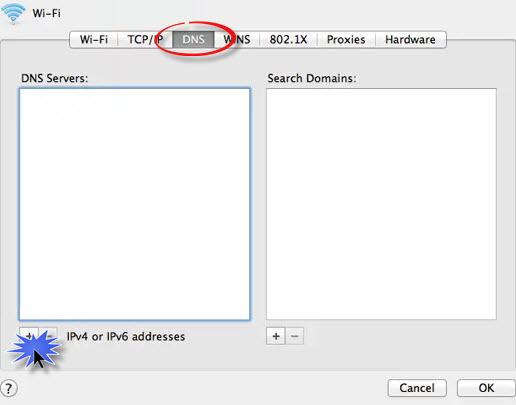
Thats it! You should now be able to access (and sign up for) Netflix and Hulu.
Configure DNS
1. Change DNS Settings
From the iPhone or iPad Settings menu, select “Wi-Fi”. Select your Wi-Fi connection and update the DNS field with one of the addresses on the Overview page. If you enter more than one DNS server, be sure sure to separate the addresses with commas.
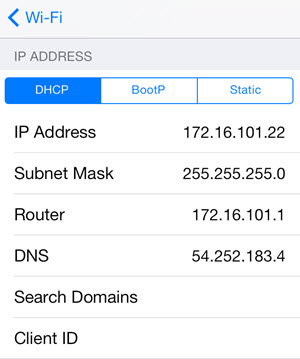
If you use multiple Wi-Fi connections, you will need update the DNS settings for each connection.
Download Streaming Apps
Many international streaming apps (e.g. Hulu) are only available on the US iTunes store, so to get access to these apps you will need to create a US Apple ID. Once created and once the apps are downloaded and installed, you can switch back to your primary iTunes account, so the US iTunes account is just a temporary one so the apps can be downloaded.
1. Prepare iTunes
Open iTunes on your computer, click “iTunes Store” then click on your account email and select “Sign Out” from the menu.
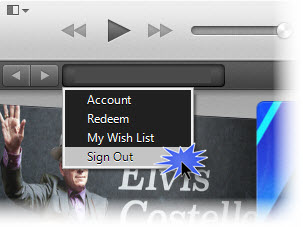
2. Change to the US Store
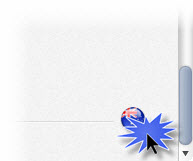
Scroll to the bottom right-hand corner of iTunes and click on the flag icon.
Then select the “United States” option from the list of countries.
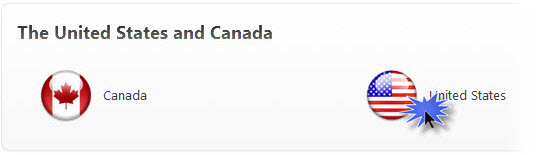
3. Find the Free Netflix App
The next step is to download a free app to bypass the usual credit card requirement when creating a new Apple ID. Search for “netflix” in the iTunes Store, then click on the free Netflix app.
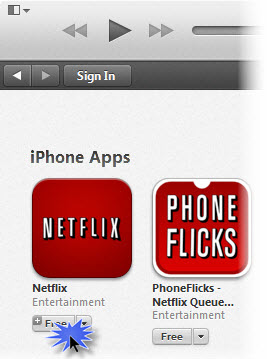
4. Create a New Apple ID
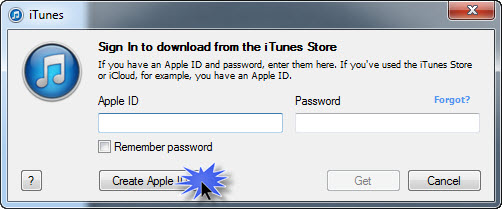
Click the “Create Apple ID” button and follow the prompts until you get to the “Apple ID Details” screen. Here, you will need to use a different email address to the one you are using for your regular Apple ID. Continue through to the payment screen.
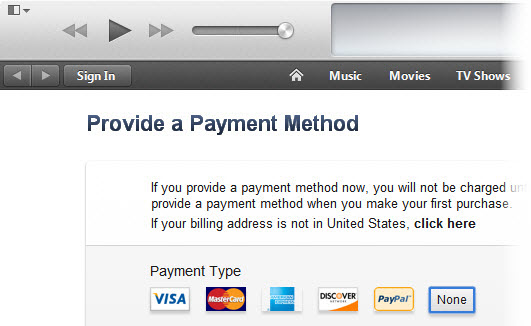
On the payment screen select “None”, then enter a US billing address (any address will do) and click “Create Apple ID”. A verification email will be sent to your nominated email address and you will have to click on the link in it to activate your new account.
Once your new US iTunes account has been created, go to your iPad or iPhone, logout of your iTunes account and login to your new US iTunes account. Download the Netflix and Hulu Plus apps (and any other US apps) from the App Store.
When you have finished downloading apps, switch back to your regular iTunes account. Netflix and other apps downloaded with your US iTunes account will continue to work even when you’re logged in with your regular account.
Configure DNS
1. Locate the DNS Settings
Navigate to “Settings”, choose “General”, then select “Network”. Click on the type of connection you have (select either “Wi-Fi” or “Ethernet”) and scroll down from there to “Configure DNS”.
2. Change DNS Settings
Change the DNS Settings to “Manual”. You will be presented with 4 sets of 3-digit numbers. At this point enter one of the addresses on our Overview page. Input the DNS address like this: _54.252.183.__4 – take note of the blank spaces for the numbers that are shorter than 3 digits.
3. Restart
After changing the DNS settings, go back to “General”, scroll down to the bottom and choose “Restart”.
Access the Streaming Apps
Apple TV (Gen 4)
You need to create a free iTunes account for each country you wish to download apps for (e.g. a US iTunes account is required to download US-only apps, a UK iTunes account is required to download UK-only apps). This is the same as how other iOS devices (e.g. iPhone, iPad) work, instructions for creating free iTunes accounts can be found on our iOS setup page.
Apple TV (Gen 2 and 3)
If you would like to have US apps (like Netflix and Hulu), change your iTunes Store location by navigating to “Settings” and scrolling down to “iTunes Store” and selecting your location as “United States” (you don’t need a US iTunes account, you just need to select the US as your location). Restart your Apple TV again and once it has rebooted, the streaming apps will be shown on the main screen.
Configure DNS
Access the Streaming Apps
1. Check Your PC is Setup Correctly
In order to double check that the PC is configured correctly, open a Command Prompt or Terminal window and run “ping my.roku.com”. It should receive ping responses from “198.55.97.110”, if not, then your Roku Owner account will not be setup correctly. If our DNS test is passing but you’re not getting the correct ping response then you may need to flush your DNS cache.
2. Unlink Your Existing Roku and Deactivate Your Account
Only complete this step if you have an existing non-US Roku Owner account. Go to my.roku.com, login to your exsting account and unlink your Roku device. Once unlinked, you must also deactivate (close) this account using the “Deactivate Account” link.
3. Factory Reset Your Roku
Perform a Factory Reset using one of the methods below:
Method 1—On your Roku, from the Home screen, go to Settings, Factory Reset and follow the prompts.
Method 2—Using a paper clip, press and hold the “Reset” button on the back of the Roku for at least 20 seconds or until you see the Roku welcome screen on your TV.
Once complete, DO NOT configure the Roku just yet, in particular DO NOT configure networking or setup WiFi until Step 5.
4. Create a New US Roku Owner Account
Go to my.roku.com and create a new Roku Owner account (using an email address you have never used with Roku before).
When entering payment details, only use a credit card.
Make sure you use a US address when filling in the details, in particular, you need to enter a valid US ZIP code. It’s best to construct a valid 5 digit ZIP code from your own post code – simply add a “0” (zero) to the end of your post code (or add a “1” to the front), and then check this website to see if it corresponds to a valid US ZIP code. If it doesn’t, then try a different number at the end (or the front) until you get one that does. If none works, then use the time-tested “90210” (but it’s usually better if it’s based on your real post code).
4. Setup Your Roku Device
Follow the on-screen instructions to setup your Roku. Make sure you connect your Roku to the network that has our DNS settings configured. When asked, select you region as “United States”. When you get to the activation screen, go to my.roku.com/link to enter the link code displayed on your TV screen.
4. Add Roku Channels
You should now be able to add US channels to your Roku, either from the Roku website or from the Channel Store on the Roku itself. Note that Getflix does not support all the channels available on the Roku.
Configure DNS
1. Locate the DNS Settings
Navigate to “Setup”, choose “Network Settings”, then select “Network Setup”. Choose the type of connection you have (select either “Wired” or “Wireless”). Continue through the options until you see “Select connection mode”, at this point, choose “Manual”.
2. Change DNS Settings
The “IP address”, “Subnet mask” and “Gateway” fields should already be populated, leave these alone and move down to the DNS field. In the DNS field, enter one of the addresses listed on our Overview page, then select “Finish”.
3. Restart
After changing the DNS settings, turn the WD TV Live device off, then on again (using the power button on the remote control).
4. Create a New US Roku Owner Account
Go to my.roku.com and create a new Roku Owner account (using an email address you have never used with Roku before).
When entering payment details, only use a credit card.
Make sure you use a US address when filling in the details, in particular, you need to enter a valid US ZIP code. It’s best to construct a valid 5 digit ZIP code from your own post code – simply add a “0” (zero) to the end of your post code (or add a “1” to the front), and then check this website to see if it corresponds to a valid US ZIP code. If it doesn’t, then try a different number at the end (or the front) until you get one that does. If none works, then use the time-tested “90210” (but it’s usually better if it’s based on your real post code).
Access the Streaming Apps
The WD TV Live detects your location and automatically displays the apps that are available to you. Use the steps below to change the location of your WD TV Live device.
1. Reset the WD TV Live Location
Navigate to “Setup”, choose “System”, then select “Set Time & Country”. Scroll down and select “Reset Location” and answer “Yes” to the message. It should detect your location as the “UNITED STATES”. Select “OK”, then go back to the main menu. If you select “Services”, the Netflix and Hulu Plus apps should now be there.
Netflix (and other streaming apps) are only available on the US PSN store, and so to get access to those you will need to create a US PSN account. Once created and once the apps are downloaded and installed, they will appear within your primary PSN account, so the US PSN account is just a temporary one so the apps can be downloaded.
Configure DNS
The DNS settings listed on the Overview page can be input to your router, for the entire network, or directly to your PS3 through Settings > Network Settings > Internet Connection Settings. You won’t need to change the DNS settings on your PS3 if you have already done so via your router.
1. Create a New User
Start by creating a new user on the PS3. You can choose whatever name you want, it doesn’t have to match your PSN name. After you create the user, click on the newly created user icon and log in as the new user.
2. Create a New PSN Account
Next, make your way to the PlayStation Network section, and select the Sign Up link. In the screen that opens, choose to create a new account.
In the next screen, make sure you select United States as your country, the other entries can be filled in any way you like.
Next, enter you email address and a suitable password.
Next, enter an online ID – this doesn’t have to be the same as your PS3 account username.
Next, fill in a US address. You can create a fake one and use a valid ZIP code, however, it’s advisable to use a real US address. Look up the address of a hotel or shopping center.
Continue on through the steps until your new PSN account is created.
3. Download and Install the Streaming Apps
Next, make your way to the PSN Store and browse for apps. The Netflix and Hulu Plus apps should be there.
Once downloaded and installed to your PS3, the video apps will show up under the “TV/Video Services” section, and it will be available in all of your PS3 accounts. So you can go back to your primary PSN account and the installed apps will all be there.
Netflix (and other streaming apps) are only available on the US PSN store, and so to get access to those you will need to create a US PSN account. Once created and once the apps are downloaded and installed, they will appear within your primary PSN account, so the US PSN account is just a temporary one so the apps can be downloaded.
Configure DNS
The DNS settings listed on the Overview page can be input to your router, for the entire network, or directly to your PS4 through Settings > Network > Set Up Internet Connection. You won’t need to change the DNS settings on your PS4 if you have already done so via your router.
1. Create a New User
Start by creating a new user on the PS4. You can choose whatever name you want, it doesn’t have to match your PSN name. After you create the user, click on the newly created user icon and log in as the new user.
2. Create a New PSN Account
Next, make your way to the PlayStation Network section, and select the Sign Up link. In the screen that opens, choose to create a new account.
In the next screen, make sure you select United States as your country, the other entries can be filled in any way you like.
Next, enter you email address and a suitable password.
Next, enter an online ID – this doesn’t have to be the same as your PS3 account username.
Next, fill in a US address. You can create a fake one and use a valid ZIP code, however, it’s advisable to use a real US address. Look up the address of a hotel or shopping center.
Continue on through the steps until your new PSN account is created.
3. Download and Install the Streaming Apps
Next, make your way to the PSN Store and browse for apps. The Netflix and Hulu Plus apps should be there.
Once downloaded and installed to your PS4 it will be available in all of your PS4 accounts. So you can go back to your primary PSN account and the installed apps will all be there.
When entering payment details, only use a credit card.
Make sure you use a US address when filling in the details, in particular, you need to enter a valid US ZIP code. It’s best to construct a valid 5 digit ZIP code from your own post code – simply add a “0” (zero) to the end of your post code (or add a “1” to the front), and then check this website to see if it corresponds to a valid US ZIP code. If it doesn’t, then try a different number at the end (or the front) until you get one that does. If none works, then use the time-tested “90210” (but it’s usually better if it’s based on your real post code).
Netflix (and other streaming apps) are only available on the US Xbox One store, and so to get access to those you will need to create a US Xbox Live account.
Configure DNS
The DNS settings listedon the Overview page can be input to your router, for the entire network, or directly to your Xbox One through Network > Advanced Settings > DNS settings. You won’t need to change the DNS settings on your Xbox One if you have already done so via your router.
1. Set up a US Xbox One Account
Create a free Xbox Live account and input a fake North American address with a valid ZIP code. It is advisable to use a real US address, look up the address of a hotel or shopping center. It does not require an Xbox Live Gold account.
2. Download the Netflix App
Download the Netflix and Hulu Plus apps using your new US account.
3. Change your Locale
In System Settings, change your system locale to “United States”.
4. Restart your Xbox One
This will solve any lingering issues from the new DNS or switch to US account.
5. Launch the Netflix App
Launch Netflix and sign in with your account to enjoy high-definition videos (depending on your bandwidth) from the comfort of your couch through Xbox One!
Netflix (and other streaming apps) are only available on the US Xbox 360 store, and so to get access to those you will need to create a US Xbox Live account.
Configure DNS
The DNS settings listedon the Overview page can be input to your router, for the entire network, or directly to your Xbox 360 through Settings > Network > Wired/Wireless Connection > Configure Network > DNS Server. You won’t need to change the DNS settings on your Xbox 360 if you have already done so via your router.
1. Set up a US Xbox 360 One Account
Create a free Xbox Live account and input a fake North American address with a valid ZIP code. It is advisable to use a real US address, look up the address of a hotel or shopping center. It does not require an Xbox Live Gold account.
2. Download the Netflix App
Download the Netflix and Hulu Plus apps using your new US account.
3. Change your Locale
In System Settings, change your system locale to “United States”.
4. Restart your Xbox 360
This will solve any lingering issues from the new DNS or switch to US account.
5. Launch the Netflix App
Launch Netflix and sign in with your account to enjoy high-definition videos (depending on your bandwidth) from the comfort of your couch through Xbox 360!
Netflix (and other streaming apps) are only available for download on the Wii U in countries where Netflix is available. This guide explains how to switch countries, download the Netflix app, then switch countries back again.
Configure DNS
The DNS settings listed on the Overview page can be input to your router, for the entire network, or directly to your Wii U through Wii Options > Wii Settings > Internet Connection Settings. You won’t need to change the DNS settings on your Wii U if you have already done so via your router.
1. Change the Wii U Country
Change your country settings to the “United Kingdom”. This can be found in the settings menu. Ignore the error that your Nintendo Network account cannot connect to the Internet.
2. Create a New User Account
Create a new user account by clicking on your Mii in the top left-hand corner of the GamePad screen and selecting “New Account”. You will need to make a new user account and a new Nintendo Network ID.
3. Download the Netflix App
Now that you can access the UK eShop, download the Netflix app.
4. Switch Back to your Regular Account
Change the Wii U’s country in the settings menu back to your regular country and log in with your regular Nintendo Network ID. Netflix will continue to work (if presented with an error at any stage, log in to your UK account).
5. Launch the Netflix App
Launch Netflix and sign in with your Netflix account to enjoy high-definition videos (depending on your bandwidth) from the comfort of your couch through Wii U!
Netflix (and other streaming apps) are only available for download on the Wii in countries where Netflix is available. This guide explains how to switch countries, download the Netflix app, then switch countries back again.
Configure DNS
The DNS settings listed on the Overview page can be input to your router, for the entire network, or directly to your Wii through Wii Options > Wii Settings > Internet Connection Settings. You won’t need to change the DNS settings on your Wii if you have already done so via your router.
1. Change the Wii Country
From the country settings in the settings menu, change your country to the “United Kingdom”.
2. Download the Netflix App
Download the Netflix app from the Wii Shop Channel.
3. Switch Back to your Regular Account
Change the country in the settings menu back to your regular country. Netflix will continue to work, the country just needs to be changed to download the app.
4. Launch Netflix
Launch Netflix and sign in with your Netflix account to enjoy high-definition videos (depending on your bandwidth) from the comfort of your couch through your Wii!


