
Your Questions Answered

Whether you’re here to protect your privacy, access geo-blocked content, or enjoy a faster internet experience, we’ve got answers to your most common questions.

Getflix Support FAQs

You sure can. There are several ways to do this, each listed below.

Browser Bookmark URL

You can simply bookmark the following URL in your favorite web browser. Then, every time you need to update your IP address, just open the bookmark. No logging in or clicking buttons required. This URL is also available on the ‘IP Address’ page after you log into your Getflix account.

https://www.getflix.com.au/api/helper/ip-address/PUT_YOUR_API_KEY_HERE

You need to get your API key from the ‘Advanced’ section under your Getflix account. Simply build the URL above by substituting the PUT_YOUR_API_KEY_HERE text with your API key.

Dynamic DNS

If you use a Dynamic DNS (DDNS) service such as DynDNS or No-IP, you can enter your domain name on our Manage -> IP Address page. We will check your domain every 5 minutes, and if your IP address has changed, we will update it in our system automatically.

If you want to use this feature, you need to make sure your router supports DDNS, and you will need an account with a DDNS provider. DynDNS and No-IP both offer free accounts.

Task Scheduler (Windows)

Note: The Getflix Windows app coming soon!

Download curl for Windows here: http://curl.haxx.se/dlwiz/?type=bin&os=Win32&flav=-&ver=2000%2FXP

To automate IP address updates in Windows, create a batch file (getflixcheckip.bat) with the following…

curl -u PUT_YOUR_API_KEY_HERE:x -X PUT
https://www.getflix.com.au/api/v1/addresses.json

Then set the Task Scheduler to start one minute delay after start-up, then to run every 15 minutes. Set the User to run as “System”.

Mac

Download the Getflix Mac app. OSX 10.10 or newer required.

Cron Job (Routers, Linux)

Using a cron job to call curl, you can query our API periodically to update your IP address. Check out our API Resource: IP Addresses article for more information. An example cron job entry would look something like this (this updates your IP address every 5 minutes):

*/5 * * * * curl -u PUT_YOUR_API_KEY_HERE:x -X PUT https://www.getflix.com.au/api/v1/addresses.json<br>You need to get your API key from the 'Advanced' section under your Getflix account. Substitute the PUT_YOUR_API_KEY_HERE text with your API key.

We need to restrict access to our service to only those customers who have signed up for a free trial or who have a paid subscription.

We do this by only allowing access to certain IP addresses. As a customer, when you register your IP address, that IP address is then allowed to access our service.

Why does my IP address change?

From time to time, your IP address can change. This is determined by your Internet service provider. Most ISPs change your IP address whenever you reconnect to the Internet, e.g., when you reboot your modem/router or when there is a power outage.

What happens when my IP address changes?

When your IP address changes, we no longer know who you are, so you won’t have access to our service. This won’t affect your normal Internet browsing but unblocking will just stop working.

If this happens, you will need to log into your Getflix account and re-register your IP address. There will be a button on the Dashboard that allows you to do this.

Can I update my IP address automatically?

Sure, check out our Can I update my IP address automatically? article for tips on how to do this.

There are several reasons why the service can stop working and you get geo-restriction messages when you try to access its content.

1. Your free trial has ended or your subscription has been suspended.

If your free trial has ended or if your subscription has been cancelled (e.g. because a payment failed), your Getflix subscription will be suspended, meaning you will not be able to unblock any services using our DNS.

To check this, log into your account at https://www.getflix.com.au/manage/overview and make sure your subscription is up-to-date. If your free trial has expired, you will need to set up a paid subscription to continue using the service.

Note: After re-activating a subscription, you will need to re-register your IP address. 

2. Your IP address has changed.
If your IP address has changed, you will need to register your new IP address in order to access the service.

To do this, log into your account at https://www.getflix.com.au/manage/overview and verify that your IP address is correctly registered.

Note: It can sometimes take up to 10 minutes for services to start working again after re-registering your IP address.

Help! It’s still not working!

No problems, we can look into it for you, just raise a support request and we’ll be happy to help you out.

Many devices cache DNS entries in order to speed up access to the Internet. While this is a good thing, it does mean that changes to some Getflix features (such as region settings) don’t take effect immediately.

To speed things up, you can manually flush the DNS cache on many devices.

Windows PC

Step 1: Open the Command Prompt
Windows XP: Click on the Start Menu and click “Run”. Type “cmd” and press Enter. 
Windows Vista/7: Type “cmd” in the search bar and press Enter. 
Windows 8: Press the “Win” key (windows logo key) and X on your keyboard. Click on “Command Prompt”. 
Step 2: Flush DNS

Type “ipconfig /flushdns” and press Enter. Type “Exit” to close the command prompt window.

In addition to these steps, it may be necessary to close and re-open your web browser.

Mac OSX

Step 1: Open the Terminal
Navigate to Applications -> Utilities -> Terminal
Step 2: Flush DNS
Type the following command and press Enter. 
Mac OSX 10.7 & 10.8 (Lions): sudo killall -HUP mDNSResponder
Mac OSX 10.5 & 10.6 (Leopards): dscacheutil -flushcache

Mac OSX 10.4 (Tiger): lookupd -flushcache

In addition to these steps, it may be necessary to close and re-open your web browser.

Linux

Different Linux distributions have different commands. Try the following commands in your terminal:
sudo /etc/init.d/nscd restart
sudo /etc/init.d/networking restart
sudo /etc/init.d/dns-clean start

sudo service nscd restart

In addition to these steps, it may be necessary to close and re-open your web browser.

iOS/Android Devices

Step 1: Close the App (e.g. Netflix)

Close the app completely (also make sure it is not running in the background).
Step 2: Restart Wi-Fi
Turn off the Wifi on your device and turn it back on again.

Smart TVs and Streaming Media Devices

Step 1: Restart the App

Close the app completely (also make sure it is not running in the background), the open it again.

Alternatively, restart the device (power off and power on again).

This is a known issue with Samsung TVs. It happens because the version of Netflix you are using is not compatible with the version of Smart HUB (Netflix was not intended to run on local versions of the smart hub software).

The only thing that appears to have worked for some of our customers is:

  1. Set the smart hub country to a country that does not have Netflix e.g. Singapore (to remove the app)
  2. Then set it to the UK or Australia (to install an older version of the Netflix app)
  3. Then configure Smart Hub not to auto update apps (as per http://www.samsung.com/us/support/howtoguide/N0000058/14611/185292/UN32F5500AFXZA)

If this doesn’t work, unfortunately there is not much that we can do about it as it’s a software problem on the TV itself. Hopefully, Samsung will fix the issue in a future software release.

This more detailed process has also worked for some users:

  1. Go to your Smart Hub and DISABLE “Auto Update Apps”. Then Close Smart Hub and go to TV Source.
  2. Go to Menu -> System -> Setup -> Enter your PIN.
  3. Go through the Setup Process until you get to the Terms & Conditions Screen.
  4. This is for 2013 Models: Hit this Sequence on your remote: Mute, Return, Vol Up, Channel Up, Mute.
  5. Select a Country that does not support Netflix (e.g. Australia).
  6. Finish the Setup.
  7. Open Smart Hub … It will uninstall all apps and reinstall the Australian ones (No Netflix).
    *(Open it all the way up until you’re on the blue screen with the apps that come standard & recommended.)
  8. Repeat Steps 2-4.
  9. This time select United Kingdom as a Country and finish the Setup.
  10. Open Smart Hub and it will install Netflix from the UK Store. Run Netflix to ensure it works OK.

Optional steps below if you want US apps instead of UK apps on your TV.

  1. Repeat steps 2-4 again.
  2. Now you can select USA and finish the setup once again.
  3. When you open the Smart Hub now all the UK Apps will be removed and replaced with the US ones. However, Netflix will be untouched and you will still have the UK App but access to the US content.
  4. Make sure that Auto App Update is disable and DON’T update Netflix or you have to go through that whole process again.

We find that it’s simpler to sign up with HBO Now outside the US with using an US iTunes account.

You may either use your existing iTunes account and change it to an US account or create a new iTunes account. The key here is to purchase a US iTunes gift card so that you can pay for the HBO NOW subscription.

  1. Purchase a US iTunes gift card. You can use this site or search on google or eBay.
  2. Open iTunes on your computer
  3. Once logged in, click your name top right and select redeem
  4. Enter the gift card code
  5. Your account will change to a US account and you will need to enter US billing data. You can use http://www.fakenamegenerator.com/ to get a US address.

Attention

For troubleshooting, you should always restart device(s) and routers first. Then check your account status in your account home. You should always see IP ADDRESS STATUS and DNS STATUS in green. Also make sure that your subscription is active.

SBS shares some video services with overseas sites that we unblock, like CBS and FOX.

So, by default, SBS thinks you’re located in the USA.

You can change your location for these services if you log into this page https://www.getflix.com.au/manage/regions and change the region for “Channel Group A” to Australia. SBS will work again!

Of course, while this is set to Australia, overseas sites that use the same video services, such as CBS, FOX, etc won’t work. You can change between the United States and Australia as often as you like.

PLUS7, Jump-in and TENplay share some video services with overseas sites that we unblock, like The Smithsonian Channel.

So by default, PLUS7, Jump-in and TENplay think you’re located in the USA.

You can change your location for these services if you log into this page https://www.getflix.com.au/manage/regions and change the region for “Channel Group B” to Australia. PLUS7, Jump-in and TENplay will work again!

Of course, while this is set to Australia, overseas sites that use the same video services, such as The Smithsonian Channel, etc., won’t work. You can change between the United States and Australia as often as you like.

Telstra Broadband Protect is an optional security product available with some Telstra broadband products.

The security protection interferes with 3rd party DNS services (like Getflix) so it cannot be used with our regular DNS service.

You will either need to disable Telstra Broadband Protect or use our DNS-over-VPN feature or our Full VPN

Some ISPs (Internet Service Providers) use Transparent DNS Proxies which cause 3rd party DNS servers (such as Getflix) not to work.

Transparent DNS Proxy is used by the ISPs to intercept DNS lookup requests (TCP/UDP port 53) and transparently proxy these data packets to their DNS servers. Unfortunately, this forces your PC/Mac/Modem/Router to use your ISPs DNS service rather than the Getflix DNS servers.

If you have a DD-WRT router or any other router that uses Linux OS, you can bypass your ISP’s transparent DNS proxy using your routers custom firewall rules. Our DNS servers run on the alternative TCP/UDP ports 5300.

In order to do this, please follow these steps:

1. Log in to your DD-WRT router and and select Setup and then Basic Setup.

2. Scroll down to Network Address Server Settings (DHCP) and Enable DHCP.

3. Change Static DNS 1 to 8.8.8.8. Change Static DNS 2 to 8.8.4.4.

4. Disable Use DNSMasq for DNS. 
Scroll down and Click on Apply Settings.

5. On your DD-WRT control panel, select ADMINISTRATION from the top right section. Then Select Commands from the tabs below.

6. Paste Followings to the Commands Shell > Commands section.

iptables -t nat -A PREROUTING -i br0 -p udp –dport 53 -j DNAT –to <GETFLIX DNS SERVER 1>:5300
iptables -t nat -A PREROUTING -i br0 -p tcp –dport 53 -j DNAT –to <GETFLIX DNS SERVER 1>:5300
iptables -t nat -A PREROUTING -i br0 -p tcp –dport 53 -j DNAT –to <GETFLIX DNS SERVER 2>:5300

7. Click on Save Startup. If needed, Paste the above code again and then Click on Save Firewall.

Reboot your router and then every device connected to your dd-wrt router will be benefiting from Getflix even though your ISP does transparent DNS lookups.

Device Setup FAQs

Some devices require that you configure our DNS servers on your router, since it’s not possible to configure DNS settings on the device itself. An example of these devices are:

  • Roku
  • Chromecast
  • Amazon Fire TV

Changing the DNS settings on your router involves using a web browser to log into the router, locate the DNS settings, and changing them to use our servers. We’ve compiled a list of instructions for many popular routers.

If your router brand is not listed above, try our generic instructions below.

  1. Look up your router model here http://bc.whirlpool.net.au/bc/hardware and make a note of the default IP address, username and password for your router (these are listed towards the bottom of the page).
  2. Access the router’s admin page by loading the router’s default IP address from the previous step in your web browser. E.g. type http://192.168.1.1 into the URL box on your browser.
  3. Enter the default username and password from step 1 to log into the router.
  4. Locate the section that allows you to change the DNS servers (usually under Advanced -> WAN or LAN -> DHCP).
  5. Fill in the DNS server fields with the 2 closest addresses on our Setup page.
  6. Save the settings and restart your router. After your router has rebooted, you may need to log into your Getflix account and register your new IP address.

If you have any trouble, please log a support ticket with us and we’ll help you out!

Unsupported Routers

Some routers supplied by ISPs have the advanced settings removed that are required to make these changes. This is a list of known devices that are not supported:

  • Optus Netgear Wireless Cable Voice Gateway CG3000
  • Telstra Netgear Wireless Cable Gateway CG3100

Various devices such as Roku, Chromecast and PS3/PS4 use public DNS servers in preference to the DNS servers configured on the device (or your router). Sometimes the entire device uses the public DNS servers (e.g. Chromecast) and sometimes it’s only the individual apps (e.g. Netflix and Dishworld on PS3 or Roku).

Also Netflix App on all devices are using public DNS + it’s own DNS.

This breaks SmartDNS services like Getflix since other DNS servers end up serving the DNS requests instead of ours. In order to fix this, you will need to take steps to block access to these 3rd party DNS servers on your router. If these devices can’t use the public DNS servers, they fall back to using the DNS servers configured on your device or router (e.g. our DNS servers).

Supported Routers

We have instructions for the following routers, if your router is not listed, please see the generic instructions provided below.

Unsupported Routers

Some routers supplied by ISPs have the advanced settings removed that are required to make these changes. This is a list of known devices:

  • Optus Netgear Wireless Cable Voice Gateway CG3000
  • Telstra Netgear Wireless Cable Gateway CG3100
  • Optus Cisco DPQ 3925-X
  • Telstra Cisco EPC 3925

Some other routers simply do no have the option to configure static routes. Here is a list of known devices:

  • Apple AirPort Devices
  • Most Belkin Routers
  • Some Thompson Models

Generic Instructions

If your router is not listed above, here are some generic instructions. Look for a section on your router to add static routes, there should be room for a network address, subnet mask and gateway. You need to setup the static routes like this:

Network Address: 8.8.8.8
Subnet Mask: 255.255.255.255
Gateway: (use the IP address of your router – this is the IP that’s in the browser URL)

Network Address: 8.8.4.4
Subnet Mask: 255.255.255.255
Gateway: (use the IP address of your router)

Notes:

  • The “gateway” should be the internal IP address of your router, it will usually start with “192.168.” or “10.” – make sure you use the internal address, not the public or external address.
  • If there is room for a “metric”, use the number 2.
  • If there is room for an “interface”, select either “LAN” or “BRIDGE”.

What this does is force your router to route requests to public DNS servers to itself, which will never get routed, so they will never work, and your device will fall back to using the DNS servers you have configured.

Instructions for configuring our DNS on Apple TV devices can be found here.

Sometimes, apps on the Apple TV report that “content is not available in your region”. This is a common problem when changing DNS settings on the Apple TV and is usually resolved by following the procedure below:

1. On Apple TV, go the Settings > General > Network.
2. Select Wi-Fi for wireless network or Ethernet if you have wired connection. For wireless network, you’ll have to select Wi-Fi network and may need to enter Wi-Fi password (if you didn’t do it before).
3. Go to Configure DNS and switch it to Manual.
4. Enter following Getflix IPs for Preferred DNS server and Alternate DNS Server and click “Done”:
From the following list, use the closest DNS server to your physical location as Preferred DNS Server, and second closest DNS server to your physical location as Alternate DNS server.
The list of IP addresses of our DNS severs can be found on our DNS Server List here.
5. Confirm on “Network” screen the DNS address is the numbers you entered (leading zeros will be omitted).
6. Go the Settings > General > iTunes Store > Location.
7. Select United States.
8. Return back to main screen.
9. Put the Apple TV to sleep with the Sleep Now command in Settings.
10. Unplug the Apple TV power cord.
11. Wait ten seconds.
12. Plug the Apple TV back in.
Attention
Make sure to RESTART your AppleTV!
* Remember whenever your AppleTV/Router IP changes, our service will stop working for you. You will need to LOG INTO Getflix and UPDATE your IP address so that our system could check your IP address and add your new IP to our database. Then, you will be able to continue using our service. If this is the first time you set up, we also suggest logging in with your PC to our site from the same Wired/Wireless network to show our system your IP address.
 
If it still does not work after completing this process, then please raise a support ticket.

Many devices cache DNS entries in order to speed up access to the Internet. While this is a good thing, it does mean that changes to some Getflix features (such as region settings) don’t take effect immediately.

To speed things up, you can manually flush the DNS cache on many devices.

Windows PC

Step 1: Open the Command Prompt
Windows XP: Click on the Start Menu and click “Run”. Type “cmd” and press Enter. 
Windows Vista/7: Type “cmd” in the search bar and press Enter. 
Windows 8: Press the “Win” key (windows logo key) and X on your keyboard. Click on “Command Prompt”. 
Step 2: Flush DNS

Type “ipconfig /flushdns” and press Enter. Type “Exit” to close the command prompt window.

In addition to these steps, it may be necessary to close and re-open your web browser.

Mac OSX

Step 1: Open the Terminal
Navigate to Applications -> Utilities -> Terminal
Step 2: Flush DNS
Type the following command and press Enter. 
Mac OSX 10.7 & 10.8 (Lions): sudo killall -HUP mDNSResponder
Mac OSX 10.5 & 10.6 (Leopards): dscacheutil -flushcache

Mac OSX 10.4 (Tiger): lookupd -flushcache

In addition to these steps, it may be necessary to close and re-open your web browser.

Linux

Different Linux distributions have different commands. Try the following commands in your terminal:
sudo /etc/init.d/nscd restart
sudo /etc/init.d/networking restart
sudo /etc/init.d/dns-clean start

sudo service nscd restart

In addition to these steps, it may be necessary to close and re-open your web browser.

iOS/Android Devices

Step 1: Close the App (e.g. Netflix)

Close the app completely (also make sure it is not running in the background).
Step 2: Restart Wi-Fi
Turn off the Wifi on your device and turn it back on again.

Smart TVs and Streaming Media Devices

Step 1: Restart the App

Close the app completely (also make sure it is not running in the background), the open it again.

Alternatively, restart the device (power off and power on again).

The first thing you need to do is check if it’s possible to change your TV’s region to the USA:

  1. Go to Main settings and Click “Smart TV Setting”.
  2. Under Change country for Premium and LG Smart World, click “Manual”.
  3. Choose “USA” as the country.
  4. Now, you should have access to the Netflix app.

If it’s not possible to change the country to the USA, then your TV is locked down and it’s not possible to access the Netflix app. There’s not much we can do about this as LG has put this restriction in.

The only thing that appears to have worked for some of our customers is:

  1. Set the smart hub country to a country that does not have Netflix e.g. Singapore (to remove the app)
  2. Then set it to the UK or Australia (to install an older version of the Netflix app)
  3. Then configure Smart Hub not to auto update apps (as per http://www.samsung.com/us/support/howtoguide/N0000058/14611/185292/UN32F5500AFXZA)

If this doesn’t work, unfortunately there is not much that we can do about it as it’s a software problem on the TV itself. Hopefully, Samsung will fix the issue in a future software release.

This more detailed process has also worked for some users:

  1. Go to your Smart Hub and DISABLE “Auto Update Apps”. Then Close Smart Hub and go to TV Source.
  2. Go to Menu -> System -> Setup -> Enter your PIN.
  3. Go through the Setup Process until you get to the Terms & Conditions Screen.
  4. This is for 2013 Models: Hit this Sequence on your remote: Mute, Return, Vol Up, Channel Up, Mute.
  5. Select a Country that does not support Netflix (e.g. Australia).
  6. Finish the Setup.
  7. Open Smart Hub … It will uninstall all apps and reinstall the Australian ones (No Netflix).
    *(Open it all the way up until you’re on the blue screen with the apps that come standard & recommended.)
  8. Repeat Steps 2-4.
  9. This time select United Kingdom as a Country and finish the Setup.
  10. Open Smart Hub and it will install Netflix from the UK Store. Run Netflix to ensure it works OK.

Optional steps below if you want US apps instead of UK apps on your TV.

  1. Repeat steps 2-4 again.
  2. Now you can select USA and finish the setup once again.
  3. When you open the Smart Hub now all the UK Apps will be removed and replaced with the US ones. However, Netflix will be untouched and you will still have the UK App but access to the US content.
  4. Make sure that Auto App Update is disable and DON’T update Netflix or you have to go through that whole process again.

There are 2 steps required to allow our service to work correctly with Chromecast.

  1. Configure our DNS servers on your router

    It’s not possible to configure DNS servers on the Chromecast directly, so this needs to be done on your router.

    See the instructions here: Configuring DNS Servers on your Router
  2. Block Chromecast from using Public DNS Servers

    Chromecast is hard-coded to use Google’s DNS servers. The good news is that if you block access to Google’s DNS, it falls back to the DNS servers configured on your router (ours!).

    See the instructions here: Block Public DNS Servers

Follow the instructions below to update the DNS settings on your ASUS router.

  1. Connect to the router by going to http://192.168.1.1 in your browser
  2. Login into the router (the default username is admin and password is also admin)
  3. On the left hand side, scroll down to WAN and click on it
  4. Scroll down to WAN DNS Setting
  5. Select No for Connect to DNS Server automatically
  6. Under DNS Server 1 and 2 enter the details of the 2 closest addresses on our Setup page
  7. Scroll down and click Apply

When setting up your Roku for the first time, please follow the instructions located on our website: http://www.getflix.com.au/setup/roku – it is very important that you follow these instructions exactly. Roku can easily detect you as outside of the USA if these instructions are not followed correctly.

Blocking Access to Public DNS Servers

The Netflix and Dishworld apps on some Roku devices (Roku 3 and Roku Streaming Stick) are hard-coded to use Google’s DNS servers. The good news is that if you block access to Google’s DNS, it falls back to the DNS servers configured on your router (ours!).

See the instructions here: Block Public DNS Servers

Alternative Instructions for a US/UK Roku Account

When you first set up your Roku account, the key point is that your location it sees you are connected from will determine the channel options available. The physical address you enter is secondary, and won’t have any impact.

So when you create your Roku account, the most reliable way to have your location correct, is to use a VPN service temporarily to either the US or UK. We recommend a free tunnelbear account.

https://www.tunnelbear.com/

Simply select the location server you want (Select GB for UK account setup, or US for US account setup).

When you visit the Roku site, you should be able to tell from the main screen that you are, in fact, in the correct country account (the channels being promoted will be uniquely US or UK). Then you can continue with your sign-up. You will also need to use a US or UK address (Google searching for real estate should be able to help you get an address in either location).

If you wish to change in future, you will need to create a completely new account, with different credit card/payment details.

On the Roku, you must do a Factory Reset to log into a different Roku account. Because of this, you cannot have both channel stores running simultaneously on the Roku, so it is best to chose the one with the most relevant channels for your viewing (or get a second Roku device, so you can have one Roku for each country).

You may be using DD-WRT router and want to update your IP address automatically in Getflix SmartDNS network. With the following instructions, your dd-wrt router will check your IP address automatically and send it to your Getflix SmartDNS account and update.

We would like to thank you Khalid Chughtai for his support on this article.

Please use following to update your ip address automatically by your dd-wrt router:

1- Select Setup > DDNS
2- On DDNS tab select custom .
3- On DYNDNS Server add www.getflix.com.au.
4- On usename enter “dot”, on password add “dot”
5- On Hostname add aa.bb.cc
6- On Additional DDNS Options add following

–dyndns_system custom@http_svr_basic_auth
–dyndns_server_name www.getflix.com.au
–dyndns_server_url /api/helper/ip-address/XXXXXXX-XXXX-XXXXX-XXXXX-XXXXXXXXXX?garbage= –verbose 5


*** XXXXXXXXXX >> This is your Unique IP Update link code provided in your Getflix > Management > IP Address. Make sure to change this with your own code
7- Do not use external IP check say No
8- Force update interval set as 1.
9- Save and apply settings.
10- In DDNS status box message will come as IP updated.

Now your dd-wrt router will check and update your IP automatically every time your router gets a new IP from your ISP minutes.

You need to setup the static routes like this:

IPv4 network: 8.8.8.8
Subnet Mask: 255.255.255.252
Gateway: (see below)
IPv4 route active: YES

Once done, save the settings, and it will make room for you to add more, you also need to add these:

IPv4 network: 8.8.4.4
Subnet Mask: 255.255.255.252
Gateway: (see below)
IPv4 route active: YES

IPv4 network: 208.67.222.222
Subnet Mask: 255.255.255.252
Gateway: (see below)
IPv4 route active: YES

IPv4 network: 209.244.0.3
Subnet Mask: 255.255.255.252
Gateway: (see below)
IPv4 route active: YES

Below are needed for Netflix only to work on devices.

IPv4 network: 23.246.0.0
Subnet Mask: 255.255.0.0
Gateway: (see below)
IPv4 route active: YES

Pv4 network: 45.57.0.0
Subnet Mask: 255.255.0.0
Gateway: (see below)
IPv4 route active: YES

Pv4 network: 108.175.0.0
Subnet Mask: 255.255.0.0
Gateway: (see below)
IPv4 route active: YES

Pv4 network: 185.2.0.0
Subnet Mask: 255.255.0.0
Gateway: (see below)
IPv4 route active: YES

Pv4 network: 198.38.0.0
Subnet Mask: 255.255.0.0
Gateway: (see below)
IPv4 route active: YES

Pv4 network: 198.45.0.0
Subnet Mask: 255.255.0.0
Gateway: (see below)
IPv4 route active: YES

For the Gateway, use the Internal or LAN IP of your FRITZ!Box (e.g. 192.168.0.1) and add 1 to it. So, if your FRITZ!Box IP is 192.168.0.1, then the Gateway you should use here is 192.168.0.2

Socks 5 & Squid 3 Proxy FAQs

Set up HTTP proxy on Google Chrome Browser

1. Click on the  Chrome Menu, which is in the top-right corner of the browser window and then press Settings.

2. When Settings open, scroll down to find  Show advanced settings. Click on it.

3. Then scroll down to find  Network section. Click on Change proxy settings button.

4. A new window pops up. Press  LAN settings.

5. On another new window check the box  Use a proxy server for your LAN (These settings will not apply to dial-up or VPN connections).

6. Enter the our VPN network address you want to connect in to the  Address field. (Click to find our VPN Server List)

7. In the field  Port enter 3128 and press OK. Note: If you want to ensure a full privacy you should NOT check the box Bypass proxy server for local addresses.
 
8. Press  OK also on the previous window.
 
9. When you will try to access a site you will be prompted for the username and password. Enter your Username and Password and press  Log in.
 
10. Your Chrome configuration is completed.
In order to check whether it really works, go to What is my IP address website. There you will see the IP address of your chosen server.
 

Set up HTTP proxy to work with Mozilla Firefox Browser.

 
1. Open Firefox Mozilla

2. Click on the  Firefox Menu, which is in the top-right corner of the browser window and then press Options.

3. Options window opens. Click on  Advanced. It can be found at the bottom of the Menu list.

4. Choose  Network tab and click on the button Settings.

5. A new window pops up. Choose the following  Manual proxy configuration.

6. In the  HTTP proxy field enter one of VPN servers addresses.(Click to find our VPN Server List) Also, check the box Use this proxy server for all protocols.
For  Port enter 3128.
It is optional to choose the box  Do not prompt for authentication if password is saved. If you choose it, then once you save credentials for proxies, the authentication will not prompt again, unless it fails.
Click on  OK.
 
7. When you will try to access a site you will be prompted for the username and password. Enter your Username and Password and press  OK.

 8. Your Mozilla Firefox configuration is done.
If you want to check whether HTTP proxy really works, go to What is my IP address website. There you will see the IP address of your chosen server.

How to set up HTTP proxy on Safari Browser


1. Open  Safari Menu and click on Preferences.

2. A new window pops up. Go to the  Advanced tab and next to the Proxies you will see a button Change Settings. Click on it.

3. In another new window you have to choose the protocol to configure. Check the box  Web Proxy (HTTP).
In the  Web Proxy Server field enter one of VPN’s servers addresses. (Click to find our VPN Server List) .Next to it enter the Port, which is 3128.
Same setting apply to  Secure Web proxy (HTTPS).
4. Check the box  Proxy server requires password and enter your Username and Password in the authentication fields.
Same setting apply to  Secure Web proxy (HTTPS).
Press  OK.

5. You might be prompted for the username and password once more when you will try to access a site. In this case, enter your Username and Password and click on  OK.

6. Safari configuration is completed and from now on you can browse anonymously.
In order to check whether it really works, go to What is my IP address website. There you will see the IP address of your chosen server.

How to set up HTTP proxy on Opera Browser

 
1. Click on the  Opera Menu, which is in the top-left corner of the browser window and then press Settings.

2. When Settings open, scroll down to find  Network section. Click on the button Change proxy settings.

3. A new window pops up. Choose  Connections tab and click on LAN settings.
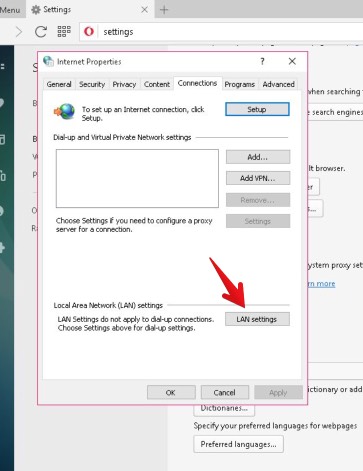
4. On another new window check the following box  Use a proxy server for your LAN (These settings will not apply to dial-up or VPN connections).
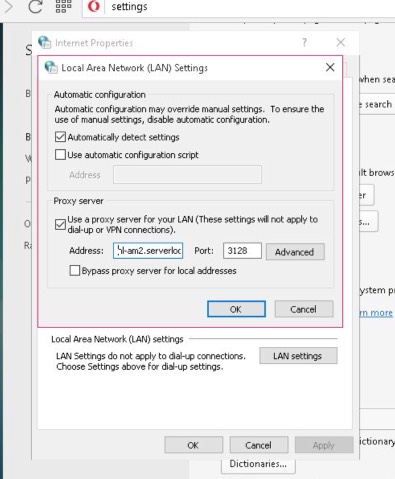
5. For  Address enter one of VPN’s servers addresses. (Click here to find our VPN Server List)
6. For  Port enter 3128. Note: To ensure a full privacy do NOT check the box Bypass proxy server for local addresses.
Press  OK.
 
7. Click on  OK on the previous window as well.
 
8. Once you try to access a site you will be prompted for the username and password. Enter your Username and Password and press  Sign in.

9. The configuration is completed.

If you want to check whether it really works, go to What is my IP address website, where you will see the IP address of your chosen server.

How to Safely Use qBittorrent with a VPN by Binding It to the VPN Interface

Using a VPN is essential when torrenting to ensure privacy and security. But simply launching a VPN and your torrent client isn’t enough. If the VPN connection drops, your torrent traffic may leak through your default internet connection, exposing your IP address. To prevent this, binding qBittorrent to your VPN interface is a crucial step.

This guide shows how to do that on Windows using qBittorrent and a VPN service like Getflix VPN.

Prerequisites

  • Getflix VPN installed and configured
  • qBittorrent installed (https://www.qbittorrent.org/)
  • Windows 10/11 system (steps similar on macOS/Linux — covered briefly later)

Step-by-Step Guide

Step 1: Connect to VPN

  1. Launch Getflix VPN.
  2. Connect to a P2P-friendly VPN server (e.g., Netherlands, Switzerland, etc. — check the server list for torrent-allowed locations).
  3. Confirm you are connected.

Step 2: Find Your VPN Tunnel Interface Name

  1. Press Windows + R, type cmd, and hit Enter.
  2. In the Command Prompt, type:
    ipconfig
  3. Look for the VPN adapter — it will usually be named something like:
    Ethernet adapter TAP-Windows Adapter V9:
    Description . . . . . : 10.x.x.x (your VPN IP)
  4. Make a note of the interface name or IP address assigned to it.

Step 3: Configure qBittorrent to Bind to the VPN Interface

  1. Open qBittorrent.
  2. Go to Tools > Options > Advanced.
  3. Under Network Interface, you’ll see a dropdown.
  4. Select the VPN interface name or IP you identified earlier.
    Example: TAP-Windows Adapter V9 or IP like 10.8.0.2
  5. Optional but recommended: Set “Optional IP address to bind to” to your VPN IP as well.

Testing It Works

  1. With the VPN connected and qBittorrent open, start a torrent.
  2. Visit a site like https://ipleak.net/ while the torrent is active.
  3. Confirm the IP shown matches your VPN IP and not your real IP.
  4. Disconnect the VPN:
    The torrent should pause or show an error if binding works correctly.

What Happens If VPN Drops?

Because qBittorrent is bound to the VPN interface:

  • No torrent traffic will route via your regular network.
  • qBittorrent will stop working until the VPN reconnects.
  • Your real IP won’t leak.

Notes for macOS/Linux Users

  • macOS: VPN interfaces can be viewed using ifconfig. qBittorrent on macOS also supports interface binding via Preferences > Advanced.
  • Linux: Use ip a to list interfaces. OpenVPN usually shows as tun0 or tun1. Bind to that in qBittorrent.

Binding qBittorrent to your VPN interface is one of the most effective ways to ensure privacy when torrenting. Combined with Getflix VPN, it adds a critical safety layer by preventing accidental IP leaks.

If you need help choosing a torrent-optimized VPN server, refer to Getflix’s VPN server list or open a support ticket.

Still need help?
Reach out to us via our Support Portal and we’ll guide you through your setup.

Full VPN FAQs

Getflix Full VPN (Virtual Private Network) provides secure and private Internet access to all its users.

Our Full VPN is a free, optional service for all paid Getflix subscribers.  

Download Getflix VPN Applications Here


What’s Getflix Full VPN and What are the benefits?

Benefits of Getflix Full VPN

  • All your Internet traffic gets encrypted through our global network
  • Total freedom of internet browsing without leaving any footprints
  • Hides your IP address
  • Protects your data from hackers, governments, ISPs, and other prying eyes
  • Secure your computer on hotspot WiFi connections
  • You can also access streaming services from remote country locations
  • There are NO LOGS kept in the network
  • All VPN connections come with UNLIMITED SPEED and BANDWIDTH

The best part is Getflix Full VPN supports any PC/Mac and Mobile Devices operating systems. Also, you can access VPN from any Internet connection; DSL, Cable, Satellite, 3G/4G, etc.

For more information, see our Full VPN FAQs.

Supported VPN Protocols

Getflix Full VPN provides four different layers of VPN security protocols:

  1. PPTP Protocol
    PPTP provides 128-bit encryption. It’s supported by almost every operating system on PCs and mobile devices. Simple to set up. Usually, provides very fast speed. But some Internet Service Providers are throttling this protocol which may give you very slow speeds and disconnections. In such case, we suggest testing L2TP, SSTP or OpenVPN protocols.
  2. L2TP Protocol – Suggested for Windows, Mac, Linux
    L2TP provides 256-bit encryption. It’s more secure than PPTP and also supported by almost every operating system on PCs and mobile devices. Simple to set up. L2TP Provides breakneck speed.
  3. SSTP Protocol – Suggested for Windows
    SSTP provides 2048 bit encryption. It’s very secure but can only be used on Windows operating systems. Simple to set up. Slower than PPTP and L2TP.
  4. OpenVPN UDP Protocol – Suggested for Windows, Mac, Linux
    OpenVPN provides 2048 bit encryption. It’s also very secure and supported by almost every operating system on PCs and mobile devices. It’s complicated to set up. OpenVPN provides the fastest speed.

Which protocol should I use?

We usually suggest our users use OpenVPN UDP Protocol mainly as it provides the best encryption with the best possible speed on most networks. Depending on your ISP performance you may try others of L2TP and SSTP (Windows Only) protocols for the best encryption, security, and speed. Some ISPs may be throttling PPTP and L2TP protocol which can lead slower than expected speeds or disconnections. In such case we suggest you use SSTP or OpenVPN UDP. 

Setup Instructions

Click on the device below for instructions on how to set up Getflix Full VPN (Virtual Private Network).

Download Getflix VPN Windows App

Download Getflix VPN MAC OS App

MAC OS IKEv2
MAC OS OpenVPN
 

Ubuntu PPTP
Ubuntu IKEv2

Ubuntu OpenVPN

Download Getflix VPN for iOS

iOS L2TP
iOS IKEv2

iOS IKEv1

iOS OpenVPN

Download Getflix VPN for iOS

iOS L2TP
iOS IKEv2

iOS IKEv1

iOS OpenVPN

Download Getflix VPN for Android

Android PPTP
Android L2TP
Android IKEv2

Android IKEv1

Android OpenVPN

 Asus Router OpenVPN
DD-WRT OpenVPN
Other routers
 

A list of server locations and addresses can be found here.

Here you will find global Getflix Full VPN (Virtual Private Network) network addresses. Every location has multiple servers running for redundancy and speed. In your setup, you need to COPY the Address field of the location you like to get connected to and PASTE it to your setup.

  • For security and encryption, we suggest you select the closest server location to you.
  • For P2P make sure to use P2P supported networks. As they are special networks designed for P2P traffic encryption and security. You can use these networks for Torrent, but only for legal purposes.
  • To unblock US websites, you need to connect US servers. For example, if you want to access HBO, Amazon Prime US, Pandora, then connect US servers. If you would like to access BBC, ITV, etc., then connect to the UK or for Zattoo Switzerland, connect to a Swiss server.

What’s P2P Server?
These servers are located in unique locations where P2P is totally legal. You can use these servers for P2P traffic as well as Torrent. Your data is encrypted and secured so your ISP or Government cannot monitor your Torrent traffic. *** Please remember P2P is only for legal purposes.

What’s SmartVPN Server? (beta)
SmartVPN servers are the combination of Full VPN and Getflix SmartDNS. Your data gets encrypted and you also have access to other country websites/services like Hulu, Amazon Prime, HBO, BBC, Pandora, Zattoo, etc. You can connect to any of our SmartVPN servers and you can still have access to some of these channels (All channels with Region Switch Required are set to US region. Therefore, other country channels with region switch required won’t work).

What’s Virtual Routing Servers?
In order to provide more security and anonymity to our FullVPN users, we own our global range of IPs. Some of the IPs virtually located in different countries than they are actually connected servers. This provides additional security layers to our users while they are accessing the content on the specific country they are virtually routed to.

Getflix FullVPN Server Locations / Addresses

Supported protocols: OpenVPN, IKEv2, LT2P, PPTP, Openconnect (port 1600).

CountryCityServer nameSmartVPNTorrent/P2P
CanadaTorontoca-tor2-smart.serverlocation.coYESYES
NetherlandsAmsterdamnl-am-smart.serverlocation.coYESYES
SwedenStockholmse-st-smart.serverlocation.coYESYES
SwitzerlandZurichch-zr3-smart.serverlocation.coYESYES
     
AustriaViennaat-vn.serverlocation.coNO 
AustraliaMelbourneau-mel2-smart.serverlocation.coYES 
AustraliaSydneyau-sy1-smart.serverlocation.coYES 
BrazilSão Paulobr-sp2-smart.serverlocation.coYES 
CanadaMontrealca-mr3-smart.serverlocation.coYES 
DenmarkCopenhagendk-cp-smart.serverlocation.coYES 
FranceParisfr-pr1-smart.serverlocation.coYES 
FranceParisfr-pr.serverlocation.coNO 
GermanyFrankfurtde-fra-smart.serverlocation.coYES 
GreeceAthensgr-at.serverlocation.coNO 
Hong KongHong Konghk-smart.serverlocation.coYES 
IndiaBangalorein-bg2-smart.serverlocation.coYES 
IndiaMumbaiin-mb.serverlocation.coNO 
IrelandDublinie-db.serverlocation.coNO 
ItalyMilanit-ml.serverlocation.coNO 
JapanTokyojp-tk2-smart.serverlocation.coYES 
New ZealandAucklandnz-ac-smart.serverlocation.coYES 
NorwayOslono-os.serverlocation.coNO 
SingaporeSingaporesg3-smart.serverlocation.coYES 
South AfricaJohannesburgza-jh2-smart.serverlocation.coYES 
SpainMadrides-md2-smart.serverlocation.coYES 
SpainMadrides-md.serverlocation.coNO 
SwitzerlandZurichch-zr.serverlocation.coNO 
TurkeyIstanbultr-is2-smart.serverlocation.coYES 
UAEDubaiuae-db2-smart.serverlocation.coYES 
United KingdomLondonuk-lon2-smart.serverlocation.coYES 
United KingdomLondonuk-lon.serverlocation.coNO 
United StatesLas Vegasus-las-smart.serverlocation.coYES 
United StatesLos Angelesus-la2-smart.serverlocation.coYES 
United StatesLos Angelesus-la2.serverlocation.coNO 
United StatesChicagous-ch.serverlocation.coNO 
United StatesMiamius-mi1-smart.serverlocation.coYES 
United StatesNew Yorkus-ny2-smart.serverlocation.coYES 
United StatesNew Yorkus-ny1.serverlocation.coNO 
United StatesOrlandous-or.serverlocation.coNO 

*** More server networks will be added soon!

Our Getflix VPN network allows you to encrypt all your internet traffic and become secure from prying eyes like governments, internet service providers, or hackers. All our Getflix VPN network locations have SmartVPN capability and provide you access to 500+ of streaming services from any location. Therefore, you can connect to the physically closest network to your location and experience the best possible encrypted VPN speeds while streaming your favorite channels, all at the same time.

All our networks are on 10GE port speeds.

You can download the Getflix VPN App for Windows here: https://1617945596.rsc.cdn77.org/windows/GetflixVPNClient.msi

In order to use our VPN network, you need to TURN ON and activate your FULL VPN in your Getflix Dashboard / VPN section here: https://www.getflix.com.au/manage/vpn

You will find your VPN username and password on this page!


We will also keep updating this new app every month for any bugs or issues that might occur. If you experience any issues or need any further functions, please open a ticket with our team, and our VPN engineers will add these features in the future.

We appreciate your patience while we keep improving it.


Features of our Getflix VPN App for Windows

SmartVPN

Our SmartVPN network locations are all optimized for the best streaming experience while they encrypt your internet traffic. You can physically connect the closest server to your location and access most of our SmartDNS streaming channels. You don’t need to activate your IP address in your Getflix account when you connect to our SmartVPN network.

Torrent

Our Torrent allowed network servers are safe to run Torrent/P2P applications. So you are safe from your ISP notifications when you are torrenting.

Auto Start

This option runs our Getflix VPN application automatically when your Windows starts.

Auto Reconnect 

This option automatically connects to the last connected server location when your app starts. Also, when your VPN connection gets disconnected for any reason, our VPN app will automatically reconnect.

Kill Switch (Beta)

Kill switch automatically monitors your network traffic, and if the app notices any VPN disconnections for any reason, it kills all your windows internet traffic. So no traffic goes directly through your local ISP to keep you safe. You need to reconnect to our VPN network to get access to the internet. Remember to turn off this function and save settings if you don’t want the kill switch running.

Prevent DNS Leak (Beta)

This option runs in the background, and if your computer tries to reach your local ISP DNS, it blocks it and redirects DNS traffic to the VPN server DNS for your security. So your ISP can not see which domains you are querying.

You can download the Getflix VPN App for Windows here:

https://1617945596.rsc.cdn77.org/windows/GetflixVPNClient.msi


If you prefer to setup OpenVPN manually you may use the following instructions

Full VPN Setup For Windows 10: OpenVPN

Below you will find OpenVPN setup instructions for Getflix FullVPN network.
OpenVPN Setup Instructions for Windows – Getflix FullVPN
1. Download the install the file below, depending of your Windows version from this link https://openvpn.net/index.php/open-source/downloads.html
2. Open the file and start installation.

3. Accept Windows UAC message (click YES button when asked).
4. After a while, OpenVPN should be installed:

5. Now, download config files for Getflix FullVPN Network from here (older versions) or
here (versions 2.6 and above)
6. Extract the file you downloaded. File name should be like Getflix-OpenVPN.zip.
You will see the Protocol-Port Directories as shown on the image below. 

Click the desired port-protocol directory. If that protocol port is blocked on your network, you can always choose another and try again. We suggest using OpenVPN UDP ports first for connecting to servers.
Copy all files from the selected folder to the OpenVPN Config directory in your computer. Config directory names should be as below:
For 64bit Windows “C:\Program Files\OpenVPN\config”
7.Once the files copied to the config folders Installation complete! 🙂
8. Start OpenVPN. In some cases it’s necessary to enforce administrator privileges.
Search for OpenVPN GUI and select “Run as Administrator”. 

Once opened, an icon will appear in your system tray.

9. Connect to a VPN server
Right-click the OpenVPN GUI icon on your system tray to display a list of VPN networks under “System Profiles” menu, then choose server and click “Connect”

We suggest using OpenVPN UDP ports first for connecting to servers.
10. Enter your VPN Account Username and Password and Click OK.

You are now connected and all your internet traffic is Encrypted & Secured!
You can connect and disconnect at any time using OpenVPN Icon in the system tray. If the VPN connection fails, see the troubleshooting tips below.
Troubleshooting
There are several reasons that the VPN connection will fail. Here are some things to check. 
    Please review your setup instructions in your setup properties section. Check the server address if it is entered properly.
If the VPN connection still fails, please log a ticket with our support team for assistance.

Download OpenVPN Configuration Files

1. Click Here to download Config Files for older versions on your computer.
Click Here to download Config Files for versions 2.6 and above on your computer.

2.  Extract the file you downloaded. File name should be like Getflix-OpenVPN.zip.

3. Copy the config files of the network locations you want to use, to your Android device.


Install OpenVPN Connect Application from Android Store

1. Install “OpenVPN connect” app from the android store.

2. Choose from menu “Import”, then “Import Profile from SD card”
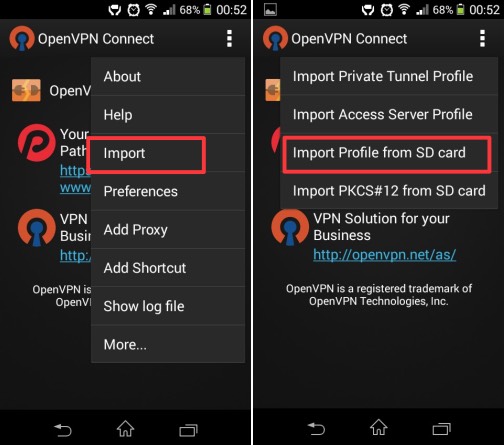
3. Select *.ovpn profile:

4. Choose “Continue” . Now you are connected.

Our Getflix VPN network allows you to encrypt all your internet traffic and become secure from prying eyes like governments, internet service providers, or hackers. All our Getflix VPN network locations have SmartVPN capability and provide you access to 500+ of streaming services from any location. So you can connect to the physically closest network to your location and experience the best possible encrypted VPN speeds while streaming your favorite channels, all at the same time.

All our networks are on 10GE port speeds.

You can download the Getflix VPN App for Android on the Google Play Store here: https://play.google.com/store/apps/details?id=com.digiport.getflix.vpn&hl=en&gl=US

In order to use our VPN network, you need to TURN ON and activate your FULL VPN in your Getflix Dashboard / VPN section here: https://www.getflix.com.au/manage/vpn

You will find your VPN username and password on this page!


We will also keep updating this new app every month for any bugs or issues that might occur. If you experience any issues or need any further functions, please open a ticket with our team, and our VPN engineers will add these features in the future.

We appreciate your patience while we keep improving it.


Features of our Getflix VPN App for Android

SmartVPN

Our SmartVPN network locations are all optimized for the best streaming experience while they encrypt your internet traffic. You can physically connect the closest server to your location and access most of our SmartDNS streaming channels. You don’t need to activate your IP address in your Getflix account when you connect to our SmartVPN network.

Torrent

Our Torrent allowed network servers are safe to run Torrent/P2P applications. So you are safe from your ISP notifications when you are torrenting.

  1.  

Below, you will find MAC OS OpenVPN setup instructions for #Getflix #FullVPN network. 

OpenVPN Setup Instructions for MAC OX – Getflix FullVPN

Ubuntu Network-Manager OpenVPN Setup Guide for Getflix FullVPN

STEP #1

Download Tunnelblick from: http://code.google.com/p/tunnelblick/wiki/DownloadsEntry?tm=2

STEP #2

Install Tunnelblick by following the on-screen instructions:

STEP #3

Launch Tunnelblick


STEP #4

When the installation is finished,  Click Quit.

STEP #5

Now Click Here to Download Config Files for older versions for Getflix FullVPN Network or
Click Here to Download Config Files for versions 2.6 and above for Getflix FullVPN Network.

STEP #6

Extract the file you downloaded. 
 File name should be like Getflix-OpenVPN.zip.

Click the desired port-protocol directory. If that protocol port is blocked on your network, you can always choose another one and try again.  We suggest using OpenVPN UDP ports first for connecting to servers.

Now, Select the Country/City of the OpenVPN Server Network you would like to get connected to and double-click it.
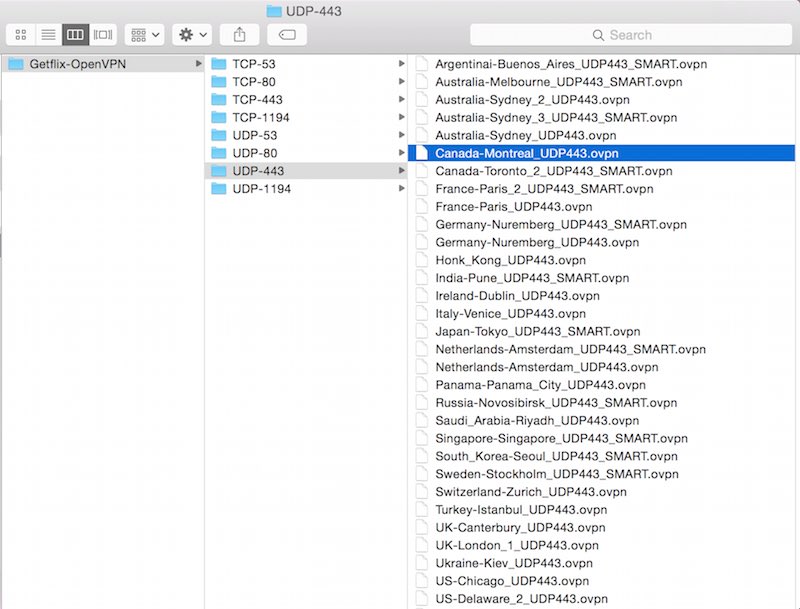
Config file will start the Tunnelblick application.  Accept to open the Tunnelblick.

When you are prompted to install configuration for all users? Click All Users.

Your Mac might ask you the mac login password to allow installation depending of your mac security preference.

You might be prompted to check your IP after VPN connection.  You can click Check for a change or Do not check for a change depending on your preference.

STEP #7

Once the Tunnelblick configuration is applied, you can click on the Tunnelblick icon on your top right side of the taskbar.  Click on Tunnelblick and Select the VPN Network you would like to get connected to.

You will be prompted to enter your VPN account Username and Password. If you don’t remember your VPN account credentials, navigate to the Your Getflix Management Console FullVPN section. Make sure to ENABLE your FullVPN below the page.

Enter your VPN account username and password. Make sure to select “Save in Keychain” so you won’t need to enter this information again in the future.

You are now connected and all your internet traffic is Encrypted & Secured!

How to add more locations to Tunnelblick?

You can add more locations to Tunnelblick screen so that you can choose anyone to connect anytime. In order to do this:  

1. Close Tunnelblick

2. Open your Getflix OpenVPN Config File folder.

3. Select the Getflix OpenVPN location you like to add to tunnelblick and double-click it. 

Tunnelblick will load and add the new config as well.


If you are experiencing any trouble with the setup and need assistance, please contact our 24/7 support team here: https://www.getflix.com.au/support

Our Getflix VPN network allows you to encrypt all your internet traffic and become secure from prying eyes like governments, internet service providers, or hackers. All our Getflix VPN network locations have SmartVPN capability and provide you access to 500+ of streaming services from any location. So you can connect to the physically closest network to your location and experience the best possible encrypted VPN speeds while streaming your favorite channels, all at the same time.

All our networks are on 10GE port speeds.

You can download the Getflix VPN App for iOS on the Apple Store here: https://apps.apple.com/us/app/getflix-vpn/id1319245598

In order to use our VPN network, you need to TURN ON and activate your FULL VPN in your Getflix Dashboard / VPN section here: https://www.getflix.com.au/manage/vpn

You will find your VPN username and password on this page!


We will also keep updating this new app every month for any bugs or issues that might occur. If you experience any issues or need any further functions, please open a ticket with our team, and our VPN engineers will add these features in the future.

We appreciate your patience while we keep improving it.


Features of our Getflix VPN App for Windows

SmartVPN

Our SmartVPN network locations are all optimized for the best streaming experience while they encrypt your internet traffic. You can physically connect the closest server to your location and access most of our SmartDNS streaming channels. You don’t need to activate your IP address in your Getflix account when you connect to our SmartVPN network.

Torrent

Our Torrent allowed network servers are safe to run Torrent/P2P applications. So you are safe from your ISP notifications when you are torrenting.

This article explains how to set up OpenVPN protocol connection on Apple iOS Devices.

Before we begin, you need to Activate your VPN account from your Getflix > Manage > VPN panel. In order to do this, log into your https://www.getflix.com.au/manage/vpn

Setting up your iOS Device (iPad, iPhone, iPod) for OpenVPN Protocol:

1. Install “OpenVPN connect” app from App Store.

2. Click Here to download Config Files for older versions or
Click Here to download Config Files for versions 2.6 and above
on your iOS device and extract the file you downloaded. (e.g. use iZip app for this task)

3. Select “.ovpn profile and open it in “OpenVPN Connect”.

4. In “OpenVPN Connect” click “+” button.

5. Type your username and password. Then connect to server.

6. Check you public IP address on www.whatismyipaddress.com

Our Getflix VPN network allows you to encrypt all your internet traffic and become secure from prying eyes like governments, internet service providers, or hackers. All our Getflix VPN network locations have SmartVPN capability and provide you access to 500+ of streaming services from any location. So you can connect to the physically closest network to your location and experience the best possible encrypted VPN speeds while streaming your favorite channels, all at the same time.

All our networks are on 10GE port speeds.

You can download the Getflix VPN App for MacOS here: https://apps.apple.com/us/app/getflix-vpn/id1319245598

In order to use our VPN network, you need to TURN ON and activate your FULL VPN in your Getflix Dashboard / VPN section here: https://www.getflix.com.au/manage/vpn

You will find your VPN username and password on this page!


We will also keep updating this new app every month for any bugs or issues that might occur. If you experience any issues or need any further functions, please open a ticket with our team, and our VPN engineers will add these features in the future.

We appreciate your patience while we keep improving it.


Features of our Getflix VPN App for Windows

SmartVPN

Our SmartVPN network locations are all optimized for the best streaming experience while they encrypt your internet traffic. You can physically connect the closest server to your location and access most of our SmartDNS streaming channels. You don’t need to activate your IP address in your Getflix account when you connect to our SmartVPN network.

Torrent

Our Torrent allowed network servers are safe to run Torrent/P2P applications. So you are safe from your ISP notifications when you are torrenting.

DNS-over-VPN FAQs

Getflix DNS-over-VPN provides an alternative way of connecting to our DNS servers using a VPN. This allows you to use our DNS servers in situations where it wouldn’t normally be possible.

The best part is, the VPN is only used for DNS, all other connections (e.g. web browsing, streaming) use your regular Internet so your browsing won’t slow down (unlike a regular VPN).

Getflix DNS-over-VPN is best used in situations where it is not possible to use our DNS servers normally, for example:

  • In a hotel room, college campus or public WiFi hotspot
  • On iPhone, iPad and Android devices using 3G or 4G
  • ISPs or countries that block access or hijack 3rd party DNS servers

Getflix DNS-over-VPN can be used on any device that supports VPN connections. Click on the device below for instructions on how to setup DNS-over-VPN.

Minimum device/OS requirements for our new VPN app:

AndroidiOSMacOSWindows
Android 7.0+iPhone 6S+ with iOS 14.0+
iPad Air 2+ with iOS 14.0+
macOS 11+ (Big Sur)Windows 8+
Windows 10+
Windows 10+ (arm64)
    

This article will explain how to set up our DNS-over-VPN feature on an Android device.

Important note: This method has become obsolete and may not be fully secure so it may not work in all cases. We’re looking for a new solution based on more secure protocols. Once found, it will be put on our website.

Note: Different versions of Android devices have different steps, try to find fields mentioned in these instructions even if you don’t see the exact names described here.

Before you begin, use the web browser on your Android device to log into your Getflix account and ensure your IP address is registered (and that the IP address status check passes). You will only be able to connect to our VPN servers if your IP address is registered.

Note: If you are using a 3G/4G connection to access Getflix, your IP address may change frequently. You will need to access the Getflix website from your Android device each time before connecting to the VPN.

Step 1

Go to  Wireless and network settings page and tap the More… item. 

Step 2

Tap on  VPN then tap Add VPN Network or the + button.

Step 3

Using a web browser, navigate to the ” Setup” section on the Getflix website. Locate your closest “VPN Enabled” DNS server.

  • Set the Name to something like “Getflix DNS VPN”.
  • Set the Type to “PPTP”.
  • In the Server address box, enter the address of your closest “VPN Enabled” DNS server.
  • In the Forwarding routes box, enter 10.233.99.1/32 – optionally, you can also enter 8.8.8.8/32 8.8.4.4/32 (put a space between each entry). 

Tap on “Save” to continue.

Step 4 

Using a web browser, navigate to the ” VPN” section in your Getflix account. Then, using the details on that page, fill out the form as follows:

  • In the Username box, enter the value displayed next to “VPN Username”.
  • In the Password box, enter the value displayed next to “VPN Password”.
  • Check Save account information.

Go ahead and connect to the VPN.

Step 5

You can disconnect and connect to the VPN at any time from this screen.

Troubleshooting

There are several reasons that the VPN connection will fail. Here are some things to check.

  • Ensure that your IP address is registered on the Getflix website.
  • Ensure that no other device is connected to our VPN using your account, only 1 concurrent VPN connection per account is permitted.

If the VPN connection still fails, please log a ticket with our support team for assistance.

This article will explain how to setup our DNS-over-VPN feature on an Apple iPhone.

DNS-over-VPN using PPTP is not supported on the latest iOS 10 and later versions due to the removal of the PPTP protocol by Apple. We are testing the L2TP protocol on our Melbourne DNS server (118.127.62.178). You will need to use the Shared Secret 1234567890 if you want to try this out.

Before you begin, use the web browser on your iPhone to log into your Getflix account and ensure your IP address is registered (and that the IP address status check passes). You will only be able to connect to our VPN servers if your IP address is registered.

Note: If you are using a 3G/4G connection to access Getflix, your IP address may change frequently. You will need to access the Getflix website from your iPhone each time before connecting to the VPN.

Step 1

Tap on the  Settings icon, go to the General section, then tap on the VPN item.

Step 2

Tap on the  Add VPN Configuration link.

Step 3

Click on the  PPTP tab at the top of the screen.

Using a web browser, navigate to the ” Setup” section on the Getflix website. Locate your closest “VPN Enabled” DNS server.

  • In the Server box, enter the address of your closest “VPN Enabled” DNS server.
  • Set the Description to something like “Getflix DNS VPN”.

Using a web browser, navigate to the ” VPN” section in your Getflix account. Then, using the details on that page, fill out the form as follows:

  • In the Account box, enter the value displayed next to “VPN Username”.
  • In the Password box, enter the value displayed next to “VPN Password”.
  • Turn the Send All Traffic option OFF.
  • Make sure the Proxy option is OFF.

Tap on “Save” to continue.

Step 4

Slide the switch ON to connect to the VPN. A small “VPN” icon should appear in the status bar at the top of the screen.

If you login to your Getflix account now, the DNS test should pass and services should be unblocked on this iPhone.

If the VPN connection fails, see the troubleshooting tips below.

Step 5

Once you’re done, slide the switch OFF to turn off the VPN.

You can connect and disconnect at anytime using the VPN switch at the top of the Settings menu.

Troubleshooting

There are several reasons that the VPN connection will fail. Here are some things to check.

  • Ensure that your IP address is registered on the Getflix website.
  • Ensure that no other device is connected to our VPN using your account, only 1 concurrent VPN connection per account is permitted.

If the VPN connection still fails, please log a ticket with our support team for assistance.

This article will explain how to set up our DNS-over-VPN feature on a Mac (OS X).

DNS-over-VPN using PPTP is not supported on the latest macOS Sierra (10.12) and later versions due to the removal of the PPTP protocol by Apple. We are testing the L2TP protocol on our Melbourne DNS server (118.127.62.178). You will need to use the Shared Secret 1234567890 if you want to try this out.

Before you begin, use a web browser to log into your Getflix account and ensure your IP address is registered (and that the IP address status check passes). You will only be able to connect to our VPN servers if your IP address is registered.

Step 1

Open “System Preferences” and click on the “Network” icon.

Step 2

Click on the “+” button to add a new network.

Step 3

Fill out the form as follows:

  • For the Interface option, select “VPN”.
  • For the VPN Type option, select “PPTP”.
  • In the Service Name box, enter “Getflix DNS VPN”.

Click the “Create” button

Step 4

Using a web browser, navigate to the “Setup” section on the Getflix website. Locate your closest “VPN Enabled” DNS server.

  • In the Internet address box, enter the address of your closest “VPN Enabled” DNS server.

Using a web browser, navigate to the “VPN” section in your Getflix account. Then, using the details on that page, fill out the form as follows:

  • In the Account Name box, enter the value displayed next to “VPN Username”.
  • Make sure Encryption is set to “Automatic (128 or 40 bit)”.

Click on the “Authentication Settings” button.

Make sure “Password” is selected and enter the value displayed next to “VPN Password”, then click “OK”.

Step 5

Click on the “Advanced” button. On the screen that appears, ensure the “Send all traffic over VPN connection” option in NOT enabled.

Click the “DNS” tab and make sure both boxes are empty. Use the “-” button to delete any entries.

Step 6

Check the “Show VPN status in menu bar” option, then click the “Apply” button.

You can now click the “Connect” button and the VPN connection should be established. If you log into your Getflix account now, the DNS test should pass and services should be unblocked. Once you’re done, click “Disconnect” to turn off the VPN.

You can connect and disconnect at anytime using the options in the menu bar at the top of the screen. If the VPN connection fails, see the troubleshooting tips below.

Troubleshooting

There are several reasons that the VPN connection will fail. Here are some things to check.

  • Ensure that your IP address is registered on the Getflix website.
  • Ensure that no other device is connected to our VPN using your account, only 1 concurrent VPN connection per account is permitted.

If the VPN connection still fails, please log a ticket with our support team for assistance.

How to Safely Use qBittorrent with a VPN by Binding It to the VPN Interface

Using a VPN is essential when torrenting to ensure privacy and security. But simply launching a VPN and your torrent client isn’t enough. If the VPN connection drops, your torrent traffic may leak through your default internet connection, exposing your IP address. To prevent this, binding qBittorrent to your VPN interface is a crucial step.

This guide shows how to do that on Windows using qBittorrent and a VPN service like Getflix VPN.

Prerequisites

  • Getflix VPN installed and configured
  • qBittorrent installed (https://www.qbittorrent.org/)
  • Windows 10/11 system (steps similar on macOS/Linux — covered briefly later)

Step-by-Step Guide

Step 1: Connect to VPN

  1. Launch Getflix VPN.
  2. Connect to a P2P-friendly VPN server (e.g., Netherlands, Switzerland, etc. — check the server list for torrent-allowed locations).
  3. Confirm you are connected.

Step 2: Find Your VPN Tunnel Interface Name

  1. Press Windows + R, type cmd, and hit Enter.
  2. In the Command Prompt, type:
    ipconfig
  3. Look for the VPN adapter — it will usually be named something like:
    Ethernet adapter TAP-Windows Adapter V9:
    Description . . . . . : 10.x.x.x (your VPN IP)
  4. Make a note of the interface name or IP address assigned to it.

Step 3: Configure qBittorrent to Bind to the VPN Interface

  1. Open qBittorrent.
  2. Go to Tools > Options > Advanced.
  3. Under Network Interface, you’ll see a dropdown.
  4. Select the VPN interface name or IP you identified earlier.
    Example: TAP-Windows Adapter V9 or IP like 10.8.0.2
  5. Optional but recommended: Set “Optional IP address to bind to” to your VPN IP as well.

Testing It Works

  1. With the VPN connected and qBittorrent open, start a torrent.
  2. Visit a site like https://ipleak.net/ while the torrent is active.
  3. Confirm the IP shown matches your VPN IP and not your real IP.
  4. Disconnect the VPN:
    The torrent should pause or show an error if binding works correctly.

What Happens If VPN Drops?

Because qBittorrent is bound to the VPN interface:

  • No torrent traffic will route via your regular network.
  • qBittorrent will stop working until the VPN reconnects.
  • Your real IP won’t leak.

Notes for macOS/Linux Users

  • macOS: VPN interfaces can be viewed using ifconfig. qBittorrent on macOS also supports interface binding via Preferences > Advanced.
  • Linux: Use ip a to list interfaces. OpenVPN usually shows as tun0 or tun1. Bind to that in qBittorrent.

Binding qBittorrent to your VPN interface is one of the most effective ways to ensure privacy when torrenting. Combined with Getflix VPN, it adds a critical safety layer by preventing accidental IP leaks.

If you need help choosing a torrent-optimized VPN server, refer to Getflix’s VPN server list or open a support ticket.

Still need help?
Reach out to us via our Support Portal and we’ll guide you through your setup.

This article will explain how to set up our DNS-over-VPN feature on a PC (running Windows 7).

Before you begin, use a web browser to login to your Getflix account and ensure your IP address is registered (and that the IP address status check passes). You will only be able to connect to our VPN servers if your IP address is registered.

Step 1

Click on the Windows Start button and type “network” in the search box. When the results appear, click on the “Network and Sharing Center” link.

Step 2

Click on the “Set up a new connection or network” link.

Step 3

Select the “Connect to a workplace” option, then click “Next”.

Step 4

Select the “No, create a new connection” option, then click “Next”.

Step 5

Click the “Use my Internet connection (VPN)” option.

Step 6

Using a web browser, navigate to the ” Setup” section on the Getflix website. Locate your closest “VPN Enabled” DNS server.

  • In the Internet address box, enter the address of your closest “VPN Enabled” DNS server.
  • In the Destination Name box, enter “Getflix DNS VPN”.
  • Select the “Don’t connect now; just set it up so I can connect later” option.

Click “Next” to continue.

Step 7

Using a web browser, navigate to the ” VPN” section in your Getflix account. Then using the details on that page, fill out the form as follows:

  • In the User name box, enter the value displayed next to “VPN Username”.
  • In the Password box, enter the value displayed next to “VPN Password”.
  • Select the “Remember this password” option.

Click on the “Create” button.

Step 8

Don’t click “Connect now”, click the “Close” button instead. 

Step 9 

Go back to the “Network and Sharing Center” screen and select the “Connect to a network” option.

Step 10

In the bottom corner of your screen, click on “Connect” next to the “Getflix DNS VPN” item.

Step 11

Click on the “Properties” button.

Step 12

On the  Options tab, make sure the “Include Windows logon domain” option IS NOT selected.

Step 13

On the  Security tab, change the Type of VPN option to “Point to Point Tunneling Protocol (PPTP)”.

Make sure the “Challenge Handshake Authentication Protocol (CHAP)” option and the “Microsoft CHAP Version 2 (MS-CHAP v2)” option are both selected and the the other 2 options are not selected.

Step 14

On the  Networking tab, ensure ONLY the “Internet Protocol Version 4 (TCP/IPv4)” item is enabled (be sure to un-tick the others), then select this item and click the “Properties” button.

Step 15

On the “IP Settings” tab, make sure the “Use default gateway on remote network” option IS NOT selected.

Step 16

On the  WINS tab, select the “Disable NetBIOS over TCP/IP” option.

Click the “OK” button to close this window, then click the “OK” button to close the 1st properties window.

Step 17

You can now click the “Connect” button and the VPN connection should be established.

If you login to your Getflix account now, the DNS test should pass and services should be unblocked. 

Once you’re done, click “Disconnect” to turn off the VPN.

You can connect and disconnect at anytime using the network menu in the system tray. If the VPN connection fails, see the troubleshooting tips below.

Troubleshooting

There are several reasons that the VPN connection will fail. Here are some things to check.

  • Ensure that your IP address is registered on the Getflix website.
  • Ensure that no other device is connected to our VPN using your account, only 1 concurrent VPN connection per account is permitted.

If the VPN connection still fails, please log a ticket with our support team for assistance.

DNS-over-VPN using PPTP is not supported on the latest iOS 10 (and later versions) due to the removal of the PPTP protocol by Apple. We are testing the L2TP protocol on our Melbourne DNS server (118.127.62.178). You will need to use the Shared Secret 1234567890 if you want to try this out. 

Please refer to the Apple iPhone instructions, the procedure is very similar.

Overview

You can use the Getflix DNS-over-VPN feature to use our DNS servers on an iPhone, iPad or Android device using a 3G/4G connection.

It’s not possible to change the DNS settings for 3G/4G connections on these devices, however, DNS-over-VPN gets around this by connecting your device directly to our DNS servers using a VPN.

Once connected, you can unblock any of our supported channels. Be aware that streaming services can consume lots of data, so ensure you have enough data allowance with your 3G/4G service.

Getting Started

To get started, follow the setup guides for iPhoneiPad or Android. Once the VPN has been setup on your device, follow this procedure each time you want to connect:

  1. Connect your device to 3G/4G (e.g. turn off Wi-Fi)
  2. Using the browser on your device, activate your IP address on the Getflix website (the IP address status test should then pass, but the DNS test will fail)
  3. Connect to the VPN on your device
  4. The DNS test should now pass and services should be unblocked

Please, let our support team know if you encounter any issues.

Known Issues

Some service providers are known not to work due to the way they connect your device to the Internet. Some service providers use proxies and load balancers in their network which interferes with how Getflix operates.

Australia – Working

  • Telstra
  • Bigpond Mobile Broadband
  • Optus
  • Other providers that use the Optus network (such as Virgin)

Australia – Not Working

  • Vodafone AU (uses load balancers) – if you can change the APN on your device, use “vfinternet.au” for direct access to the Internet, Getflix will then work!

New Zealand

  • TBA

Please let our support team know if the Getflix DNS-over-VPN feature works (or doesn’t work) with your service provider!

How is Getflix DNS-over-VPN different from a regular VPN?

Getflix DNS-over-VPN only uses the VPN for DNS queries. All other Internet traffic works as normal, and won’t use the VPN.

What channels are unblocked when using DNS-over-VPN?

The DNS-over-VPN feature uses our network of DNS servers, so any channel that is unblocked using our DNS servers is also unblocked when using the VPN to access our DNS servers.

Will this VPN encrypt my data and protect my privacy?

No, the Getflix DNS-over-VPN is only used for DNS, so offers no privacy or security to your regular Internet usage.

Can I use the Getflix DNS-over-VPN on multiple devices?

You can set up the VPN connection on as many devices as you like, but you can only have 1 active connection at a time.

Does this feature cost any extra?

No, this feature is free with every account.

API FAQs

Introduction

The Getflix API allows you to interact with our system programmatically, over a secure, authenticated HTTPS connection.
Our API conforms to RESTful design principles. You interact with resources exposed via the API by accessing resource URIs using the HTTP verbs (GET, POST, PUT, and DELETE). Getflix accepts and returns JSON data via the API.
You’ll likely need access to a web developer or programmer (if you’re not one) to get the most use out of the API.
Authentication
Authentication is implemented as HTTP Basic Authentication over SSL (https). The username is your API Key (which can be found under the ‘ Apps‘ section when you login to our website). The password is always ‘x’.

Accessing our API using curl might look something like this:
curl -u <api_key>:x -X GET https://www.getflix.com.au/api/v1/addresses.json
Be sure to keep your API Key safe, treat it like a password, since it effectively gives you full access to your account.
URL
The URL for API requests is:
https://www.getflix.com.au/api/<resource_uri>
Resources
The available resources are:
  • IP Addresses – Allows you to get and set the IP addresses registered with your Getflix account.
  • Profile – Allows you to get and set user profile information.
  • Regions – Allows you to get and set region switching information for you Getflix account.
  • Subscription – Returns information about the user’s subscription.
  • System – Returns information about the system.
  • DNS Test – Tests if the current device’s DNS is configured correctly. 
Response Data
Response data is sent as JSON. Response codes are sent via the normal HTTP response code:
  • 200: OK
  • 400: Bad Request
  • 401: Not Authorized
  • 403: Forbidden

Windows Users

When using curl for Windows and POSTing JSON to our API, you need to escape strings like this:
curl -u YOUR_API_KEY:x -X POST -d "{ \"service\": \"netflix\", \"region\": \"AU\"}" https://www.getflix.com.au/api/v1/regions.json

The ‘IP Addresses’ resource allows you to get and set the registered IP address associated with your Getflix account.


Note: Although this resource supports multiple IP addresses per account, this is not yet implemented. Currently, only one IP address per account can be registered at any time.


GET v1/addresses.json
Returns an array of currently registered IP addresses associated with your Getflix account.

Return Data

[{"ip_address": <ipAddress>}]

Example Usage

curl -u <api_key>:x -X GET https://www.getflix.com.au/api/v1/addresses.json
[{"ip_address": "1.2.3.4"}]

PUT v1/addresses.json

Updates your registered IP address. Our server will determine your IP address automatically from the request. Your IP address only updates if it has changed (if your IP is the same as what we have on file, nothing happens). This is particularly useful if you want to automate IP address updates (e.g. by using a cron job, or similar).

Example Usage

curl -u <api_key>:x -X PUT https://www.getflix.com.au/api/v1/addresses.json

The Test DNS resource returns the result of a DNS test that checks if the device the test was initiated from is using our DNS servers.

Note: This resource is a little different from the others in that is uses its own URL and does not require authentication.


GET https://check.getflix.com.au/?format=json

Returns an object containing the DNS test result.

Return Data

{ "dns": <trueOrFalse> }

Example Usage

curl -X GET https://check.getflix.com.au/?format=json{ "dns": true}

The ‘Regions’ resource allows you to get and set the region settings available on some services supported by Getflix.


Note: Not all regions are available for all services, if you specify an invalid region for a particular service, an error will be returned.


GET v1/regions.json
Returns a complete array of region objects, each containing a service name and a 2-character ISO country code.

Return Data

[ { "service": <serviceName>, "region": <regionCode> } ]

Example Usage

curl -u <api_key>:x -X GET https://www.getflix.com.au/api/v1/regions.json
[ { "service": "netflix", "region": "CA" }, { "service": "wdtv", "region": "GB" }, { "service": "theplatform", "region": "US" }, { "service": "brightcove", "region": "US" }, { "service": "sony", "region": "US" } ]

 POST v1/regions.json

Updates the region for a specified service. Only one service can be updated at a time, and the following JSON object must be present in the POST body.

{ "service": <serviceName>, "region": <regionCode>}

serviceName: is a valid service name (see region list below)
regionCode: is the ISO 2-letter country code for the region to switch to (in upper-case).

Example Usage

curl -u <api_key>:x -X POST -d '{"service":"netflix","region":"US"}' https://www.getflix.com.au/api/v1/regions.json

GET v1/regions/list.json

Fetches a list of services and the valid regions each service can be switched to.

Example Usage

curl -u <api_key>:x -X GET https://www.getflix.com.au/api/v1/regions/list.json

The ‘subscription’ resource returns information about the user’s Getflix subscription and billing details.


GET v1/subscription.json

Returns an object containing subscription information.

Return Data

{ "state": <state>, "date": <nextBillingDate>, "days_left": <daysRemaining>, "amount": <monthlyBillingAmount>, "subscription": <autoBillingEnabled>}

Example Usage

curl -u <api_key>:x -X GET https://www.getflix.com.au/api/v1/subscription.json
{ "state": "Active", "date": 123456789, "amount": 2.95, "trial_days": 0}
  1. The ‘System’ resource returns information about the Getflix system.


    GET v1/system.json

    Returns an object containing system information.

    Return Data

    { "client_ip": <ipAddress>, "server_ip": <ipAddress>}

    Example Usage

    curl -u <api_key>:x -X GET https://www.getflix.com.au/api/v1/system.json
    { "client_ip": "1.2.3.4", "server_ip": "5.6.7.8"}

The ‘Profile’ resource returns information about the current user’s profile as well as allows you to update it.


GET v1/profile.json
Returns an object containing user profile information.

Return Data

{ "first_name": <firstName>, "last_name": <lastName>, "email": <emailAddress>, "api_key": <apiKey>}

Example Usage

curl -u <api_key>:x -X GET https://www.getflix.com.au/api/v1/profile.json
{ "first_name": "John", "last_name": "Doe", "email": "john.doe@example.com", "api_key": "00000000-0000-0000-0000-000000000000"}

POST v1/profile.json

Updates the profile information for the current user. The following JSON object must be present in the POST body.

{ "first_name": <firstName>, "last_name": <lastName>, "email": <emailAddress>}

firstName: is the user’s first name.
lastName: is the user’s last name.
emailAddress: is a well formed email address for the user.

Calls to this resource will return a JSON object with a property called ‘error’ if there were any errors encountered while applying the changes.

Example Usage

curl -u <api_key>:x -X POST -d '{"fist_name":"John","last_name":"Doe","email":"john.doe@example.com"}' https://www.getflix.com.au/api/v1/profile.json


If you have a Question that is not in our FAQs , please reach out to us via the details on our Contact Us page and we’ll get back to you asap!

Scroll to Top